
Flash Drive Fails? These Recovery Programs Can Help!
Flash drive recovery is a high-priority task for many business owners and IT managers in 2026. Whether your critical presentation files were accidentally deleted, your drive shows a “not formatted” error, or Windows simply stopped recognizing the device, the situation is often salvageable if you act quickly and correctly.
This guide is designed for professionals who need to understand the technical nuances of data retrieval. We aim to provide a clear path to mitigate data loss and significantly increase the likelihood of a successful recovery. While no method can offer a 100% guarantee, following these industry-standard protocols will provide your best chance at getting your data back.
Quick answer — best flash drive recovery tools in 2026:
| Tool | Best For | Free Version? |
|---|---|---|
| Recuva | Deleted files on Windows | Yes (unlimited) |
| PhotoRec | Formatted or corrupted drives | Yes (fully free) |
| Disk Drill | Beginner-friendly deep scan | Yes (up to 100MB) |
| TestDisk | Lost partitions, file system repair | Yes (fully free) |
| Windows File Recovery | Built-in Windows option | Yes (free) |

Here is the short version of what to do right now to protect your data:
- Stop using the drive immediately — every new file written can overwrite your lost data.
- Do not format the drive if Windows is asking you to; this can complicate the recovery process.
- Do not run CHKDSK on a drive you want to recover files from, as it may alter the file structure.
- Download recovery software (like Recuva or PhotoRec) onto your computer, not the flash drive.
- Recover files to a different drive — never save them back to the original USB.
I’m Randy Bryan, founder of tekRESCUE and a cybersecurity and technology expert with over a decade of experience helping businesses in Central Texas navigate data loss emergencies. Whether you are a business owner who just lost a critical file or an IT manager dealing with a failed drive, this guide will walk you through your best options.
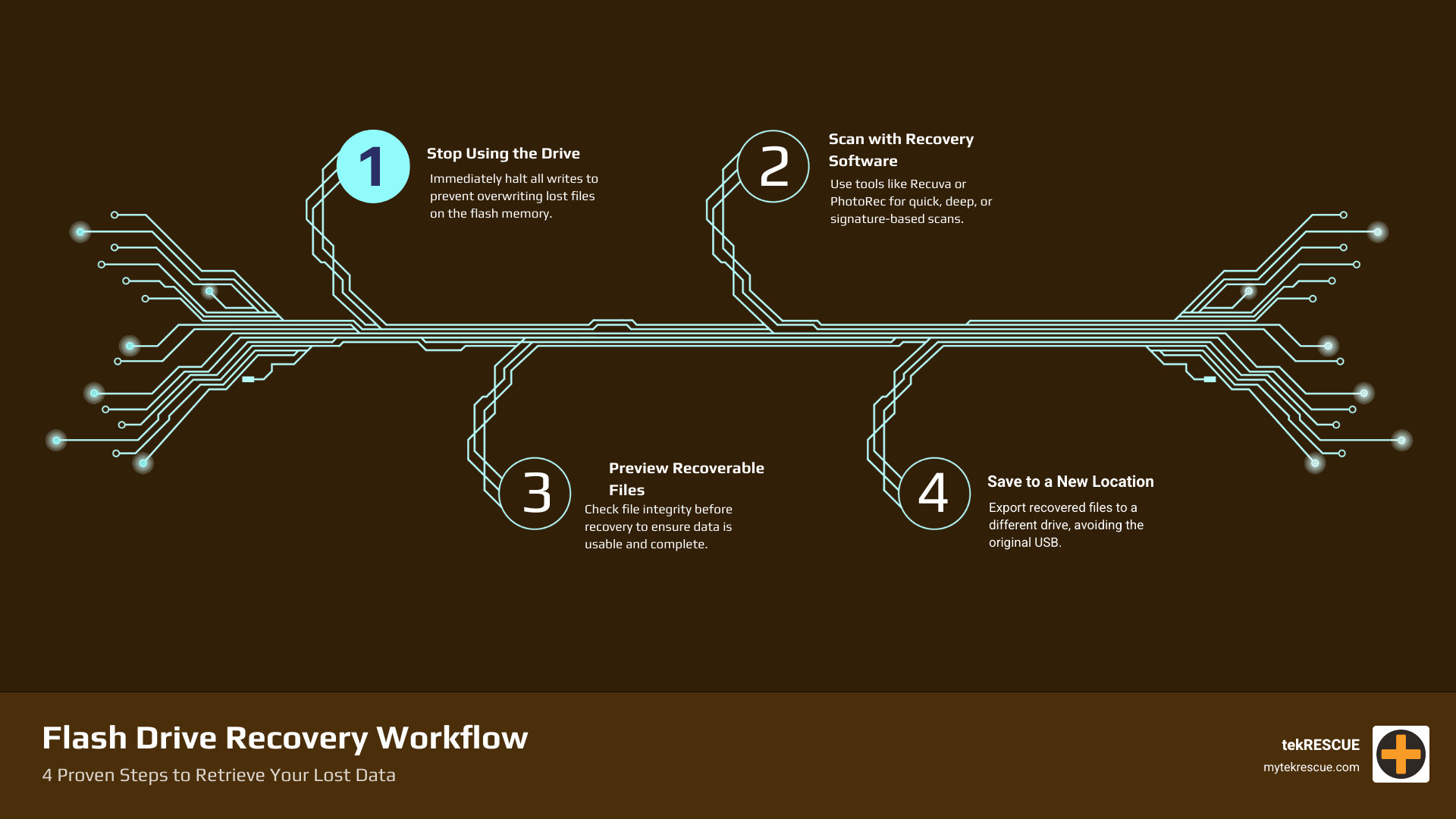
Table of Contents
Flash drive recovery: Why Your USB Fails and How to Respond

Understanding why your drive failed is the first step toward a successful recovery. Generally, failures fall into two categories: logical and physical. Logical damage occurs when the data structure or file system is corrupted, but the hardware is fine. Physical failure involves broken connectors, fried circuits, or worn-out NAND flash chips.
According to research and our experience at tekRESCUE, The Risks Involved With Using Removable Media are often underestimated. USB sticks are incredibly convenient but are not designed for long-term storage or high-reliability environments. They are susceptible to power surges, improper ejection, and even environmental factors like heat or water.
The good news is that most software-based tools can handle logical issues with high success rates. However, if the drive is physically “dead”—meaning no lights blink and your computer doesn’t react at all when you plug it in—you are likely looking at a Usb flash drive recovery scenario that requires professional intervention.
Common Signs of a Corrupted Flash Drive
In April 2026, Windows 10 and Windows 11 remain the dominant operating systems for our clients in San Marcos and Dallas. If your drive is failing, you will likely see one of these red flags:
- “Drive not formatted”: Windows detects the hardware but cannot read the file system. It will ask if you want to format it now. (Say no!)
- RAW File System: In Disk Management, the drive’s partition type shows as “RAW” instead of FAT32 or NTFS.
- 0B Capacity: The drive is recognized as a letter (like E:), but it shows zero bytes of used or available space.
- Access Denied: You can see the folders, but trying to open them results in an error message.
- Disappearing Files: You know the data was there yesterday, but the folder is suddenly empty.
The Golden Rule: Why You Shouldn’t Format Your Drive

When Windows pops up a window saying, “You need to format the disk in drive X: before you can use it,” it feels like the computer is offering a fix. In reality, that “fix” is a significant risk to your data.
As we discuss in The Basics Of Data Recovery, formatting creates a new, empty file table. While a “Quick Format” doesn’t technically erase the data immediately, it marks all those NAND blocks as “available.” If you then start using the drive, the system will overwrite your old photos or documents with new data. Once a block is overwritten, it is gone forever.
The “Golden Rule” is to always use read-only recovery software first. These tools bypass the corrupted file table and look directly at the raw data on the chips without changing a single bit on the source drive. This approach minimizes the risk of further data degradation.
Top Software Solutions for Data Retrieval in 2026
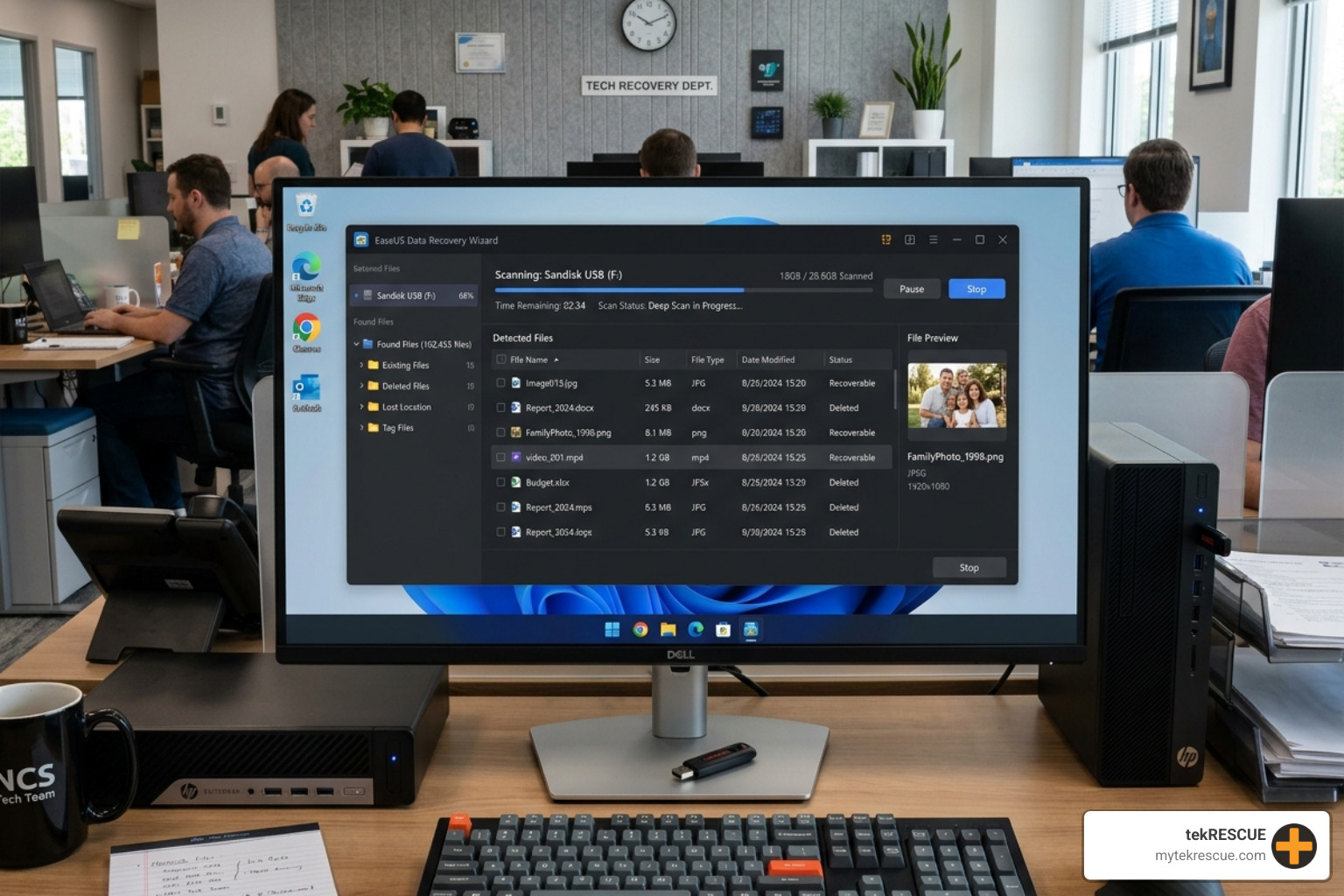

By 2026, recovery software has become incredibly sophisticated. Most modern tools use a combination of scan modes to find your files. Understanding these modes helps IT managers choose the right tool for the job.
- Quick Scan: This looks at the file system’s index (the table of contents). It’s great for recently deleted files.
- Deep Scan / Signature Scan: This ignores the index and scans every sector of the drive for “file signatures.” For example, every JPEG file starts with a specific string of code. The software identifies these patterns to “carve” the files out of the raw data.
| Feature | Quick Scan | Deep Scan | File Carving |
|---|---|---|---|
| Speed | Very Fast | Slow | Slowest |
| Best For | Recent Deletions | Formatted Drives | Corrupted File Systems |
| Recovers Names? | Yes | Sometimes | Usually No |
One technical reason flash drive recovery is often more successful than SSD recovery is the lack of TRIM support. On modern SSDs, the system actively wipes deleted data to keep the drive fast. Most USB flash drives do not use the TRIM command, meaning your deleted data stays on the NAND chips indefinitely until it is overwritten.
Best DIY Tools for Flash drive recovery on Windows
If you are attempting a DIY recovery, we recommend starting with these tools. They have been tested thoroughly and are widely considered strong options for home and business users alike.
- Recuva: This is one of the most widely used free recovery tools for Windows. It features a simple wizard that guides you through the process. If a standard scan fails, ensure you check the “Deep Scan” box. It’s especially useful for accidental deletions.
- PhotoRec: Don’t let the name fool you-it recovers much more than photos. It supports over 480 file formats. It is a command-line tool, which can be intimidating, but it is incredibly powerful for How To Recover Data From a USB Flash Drive – SalvageData scenarios where the file system is completely destroyed.
- Disk Drill: This is a more modern, polished application. While the free version only allows for a small amount of data recovery (100MB), its preview feature is excellent for seeing if your files are actually recoverable before you commit to a purchase.
Advanced Methods: CMD and Built-in Windows Features
Sometimes, your files aren’t actually gone; they are just hidden or the file system has a minor “hiccup.” Before you spend money on software, you can try these built-in Windows methods.

1. The Attrib Command If a virus has hidden your files, they won’t show up in File Explorer, but they are still taking up space.
- Open CMD as Administrator.
- Type:
attrib -h -r -s /s /d E:\*.*(Replace E with your drive letter). - This removes the “Hidden,” “Read-only,” and “System” attributes from all files on the drive.
2. Windows File Recovery Microsoft released its own command-line tool available in the Microsoft Store. It’s a solid, free option for Windows 10 and 11 users.
- Run the command:
winfr E: C:\RecoveryFolder /extensive - This will scan the E: drive and move anything it finds to a folder on your C: drive.
Professional Flash drive recovery for Physical Damage
There is a limit to what software can do. If your flash drive has been snapped in half, submerged in water, or has a failed controller chip, software won’t even see the drive. This is where professional services come in.
Many small to medium-sized businesses in Central Texas find that tekRESCUE provides an accessible, personalized approach for standard flash drive recovery needs. As your Your Data Recovery And It Emergency Lifeline, we often see cases where “chip-off” recovery is required.

This involves:
- Desoldering the NAND flash memory chip from the circuit board.
- Placing the chip into a specialized reader.
- Using advanced software to reverse-engineer the controller’s algorithm to piece the data back together.
FAQ on Physical Damage:
- Can a snapped USB be fixed? Usually, yes. If the NAND chip (the part that holds the data) isn’t cracked, a pro can recover the data.
- What if the drive went through the wash? Do not plug it in. Let it dry completely for several days. If it still doesn’t work, a pro can often clean the corrosion and extract the data.
- Is it expensive? It is more expensive than software, but for irreplaceable business records or family photos, it is often a necessary investment to mitigate the impact of total data loss.
Conclusion: Protecting Your Data with tekRESCUE
At tekRESCUE, we believe that the best recovery plan is one you never have to use. While we are experts at flash drive recovery, we would much rather help you implement Your Plan For Recovering Important Data In The Case Of An Emergency so that a failed USB stick is a minor annoyance rather than a catastrophe.

Prevention Tips to Save Your Future Self:
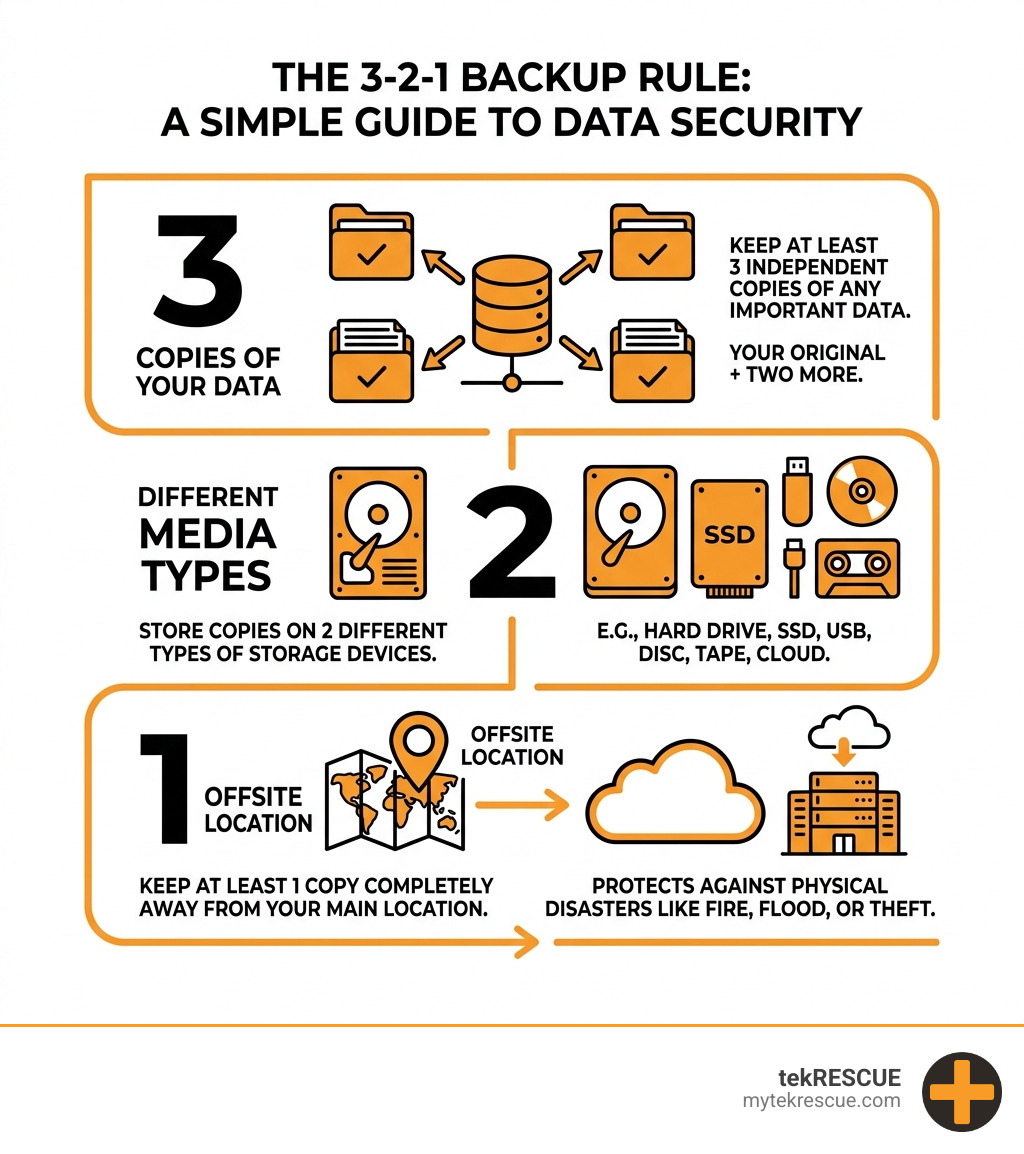
- The 3-2-1 Rule: Keep 3 copies of your data, on 2 different types of media (e.g., local drive and cloud), with 1 copy offsite.
- Always Eject Safely: This ensures all “write” operations are finished before power is cut, reducing the risk of file system corruption.
- Buy Quality: Avoid the $5 “no-name” drives. Stick to reputable brands like SanDisk, Kingston, or Samsung which often have better controller reliability.
- Retire Old Drives: Flash memory has a finite number of write cycles. If you’ve used a drive daily for several years, migrate that data to a new one to lower the risk of hardware failure.
If you are currently staring at a “Drive Not Formatted” error or a dead USB stick in San Marcos, TX, or anywhere in the DFW area, don’t wait. The longer you tinker with a failing drive, the lower the chances of a full recovery. While retail options like Geek Squad offer basic file transfers, complex data recovery often requires the specialized tools and expertise found at a dedicated IT firm.
For more information on how we can help protect your business from data loss and cyber threats, check out our IT services page.
Don’t let a hardware failure stop your business in its tracks. Whether you need an emergency recovery or a proactive backup strategy to mitigate future risks, we are here to help.
Table of Contents