
SharePoint Permissions Best Practices for Small Businesses
If you run a business on Microsoft 365, here is the uncomfortable truth: the most likely way your files leak is not a hacker. It is a permission someone granted two years ago and nobody ever reviewed. The best SharePoint permissions setup is boring on purpose: give access through groups, keep the structure simple, grant the least access that lets people work, and review it on a schedule. We build and secure Microsoft 365 environments for small and mid-sized businesses, and this is the routine we would hand a friend.
Table of Contents
TL;DR
- Grant access to groups, never to individual people, and stay with the default Owners, Members and Visitors groups.
- Use least privilege: most staff need Edit or Read, and only a few trusted people need Full Control.
- Keep inheritance intact. Put sensitive material in its own site or library instead of locking individual files.
- Every time you break inheritance you create a unique permission scope, and those pile up faster than most owners expect.
- Review access on a schedule with named content owners, and treat sharing links as permissions too.
Table of Contents
- How SharePoint access control works
- Best practices that hold up in a small business
- Site owner or site admin: who can do what
- Review and clean up the permissions you already have
- Why permissions matter more with AI assistants
- Special case: healthcare and regulated records
- Perspective
- Get your permissions reviewed by people who do this daily
- FAQ
- Sources
How SharePoint access control works
SharePoint decides who can open, change or delete content through three building blocks: permission levels, groups and inheritance. Understand these and every best practice below makes sense.
Permission levels are bundles of rights. Microsoft’s documentation lists Full Control for Owners, Edit for Members and Read for Visitors as the defaults, and notes that Full Control and Limited Access can’t be customized or deleted (Understanding permission levels).
Groups are the sets of people who receive a level. Microsoft’s guidance on default SharePoint groups says to control access for sets of users through groups rather than individuals, and that each group carries one permission level. A group can contain individual users, Microsoft Entra security groups, or both. (Microsoft Entra ID is the sign-in directory formerly called Azure Active Directory.)
Inheritance means that by design, everything inside a site collection takes its permissions from the root site. A document library inherits from its site, and a folder inherits from its library. Change the top and everything below follows. That is what makes SharePoint manageable, and it is what you give up when you break it.
Best practices that hold up in a small business
1. Assign access to groups, not people
Granting a permission to one person feels faster. Six months later you have dozens of individual grants, and when that person changes roles nobody knows what to remove. Microsoft’s site-owner guidance recommends adding people to the standard default groups rather than granting individual permissions (Microsoft Support, site governance overview).
For a team site connected to a Microsoft 365 group, Microsoft recommends managing permissions through that group. For communication sites, it recommends the built-in SharePoint groups (Customize permissions for a list or library). If your company already uses security groups for departments, you can nest them inside SharePoint groups, so a new hire gets the right access the moment they join the department group.
2. Apply least privilege
Least privilege means each person gets the minimum access needed for their job, nothing more. In practice:
- Office staff who only consult policies and forms get Read.
- People who create and update documents get Edit.
- Full Control stays with a small number of trusted people. Microsoft’s planning guidance specifically says to limit the Owners group to trusted users (Plan site permissions).
An Owner can change membership, content and settings for the whole site, so every extra Owner is an extra person whose compromised account could hand an attacker everything. We recommend two named Owners per site so there is a backup without a crowd.
3. Keep the permission levels default
It is tempting to build a custom level called something like “Edit but no delete.” Resist it. Custom levels multiply, nobody remembers what each one does, and they complicate every later review. The three defaults cover nearly every small-business need. When you want to separate who can do what, separate the content, not the permission level.
4. Split content by site, not by exception
The most useful structural rule is this: when two groups of people need different access, give them different places. HR files, payroll, patient records and client tax documents belong in their own site or library with their own members. Microsoft’s planning guidance advises separating sensitive data into its own lists, libraries or subsites rather than applying fine-grained permissions throughout (Plan site permissions).
A workable small-business layout looks like this:
| Site | Who gets access | Level |
|---|---|---|
| Company intranet | All staff | Read |
| Operations team site | Operations group | Edit |
| HR and payroll | HR lead and owner only | Edit, one Owner |
| Finance | Finance group | Edit |
| Client or patient records | Named role-based group | Edit or Read |
Each row is one decision, and a single group controls it. Compare that with a single shared site where thirty folders each carry their own exceptions.
5. Use unique permissions sparingly
When you share a single file or folder with someone outside the library’s normal audience, SharePoint stops inheriting from the parent and gives that item its own permission scope. Microsoft defines unique permissions this way and notes that sharing a file or folder breaks inheritance.
There are hard numbers here. A library or list can’t have more than 50,000 unique scopes, and Microsoft recommends staying under 5,000 per library for best performance (Migration permission guidance). A folder can only break inheritance if it holds 100,000 or fewer items (Manage Permission Scopes).
A small company will rarely hit those ceilings. The real problem arrives much sooner: a hundred broken inheritances means nobody can answer the question “who can see this?” without clicking through every item.
If you must break inheritance, do it at the highest level that makes sense, in the order site, then library, then folder, and only rarely the individual item. Then write down why, in a short note kept with the site’s records.
6. Remember that access stacks up
This catches owners out when they try to remove access. According to Microsoft Support, a person keeps the highest permission they have through any source: direct access, a group, a folder or site, or a sharing link. If you take someone out of a group but they still hold a link to the file, they still have access. To reduce someone’s access you must change every source that grants the higher permission.
That is also why individual grants hurt. They are one more source to hunt down.
7. Treat sharing links as permissions
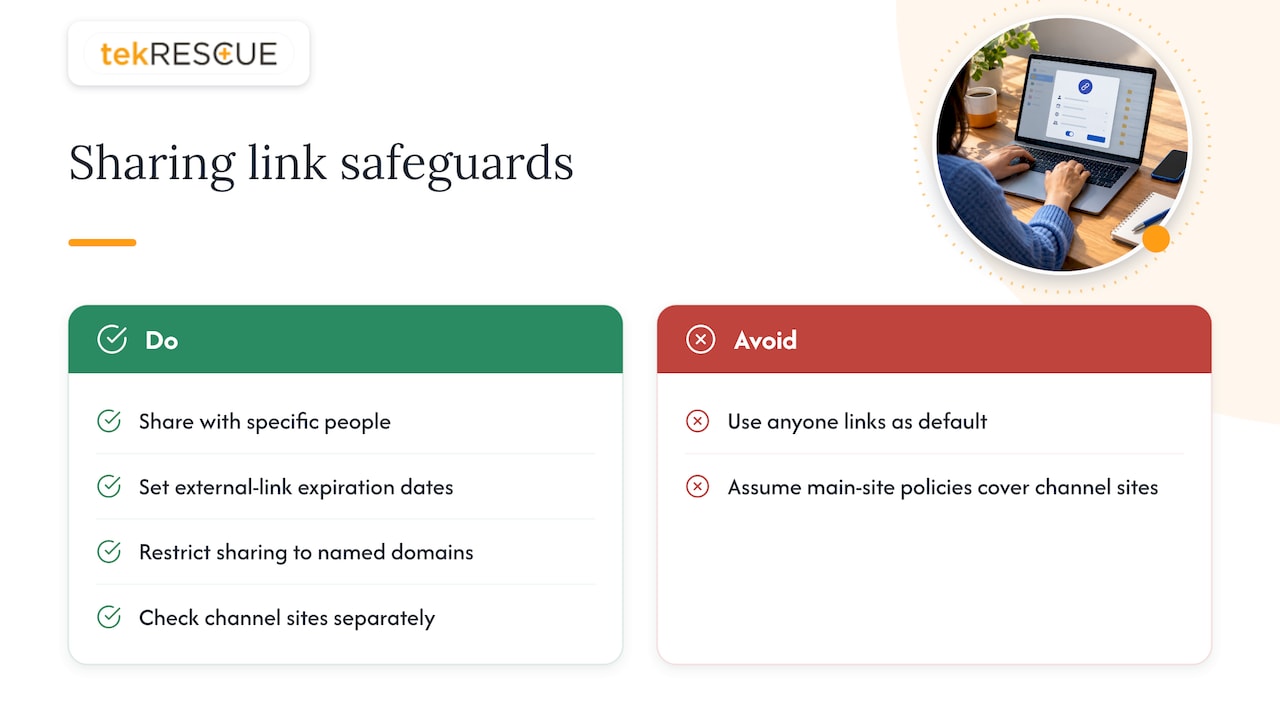
An “anyone with the link” URL is a permission with no name attached to it. For most small businesses the better default is to share with specific people, set expiration dates on external links, and restrict sharing to named domains where a partner relationship exists. If you handle client financials, patient information or legal files, make external sharing the exception that a site owner approves, not the habit.
Teams adds a wrinkle. Microsoft notes that shared and private Teams channel sites are separate site collections, so a restriction policy applied to the team’s main site does not cover them and must be configured separately (Restricted access control). If your staff work in channels, check those sites too.
For a broader view of how files leave your business, see our guide to secure file sharing. The principles of secure business data sharing apply no matter which platform holds the files. If you are still deciding where files should live, we compare the two in OneDrive or SharePoint.
8. Give every site a named owner and a review date
Permissions rot because nobody is responsible for them. Microsoft’s guidance says site owners should decide who needs access, who should not have it, and how access requests are handled, and that governance plans should cover naming conventions, guest access and classification of sites, groups and files (Intelligent intranet roles and tasks). Its site-owner guidance also recommends auditing site and page content as often as necessary, with an audit schedule and assigned content owners (Microsoft Support).
For a small business, a realistic version is a calendar reminder each quarter for sensitive sites and once a year for everything else.
Site owner or site admin: who can do what
The words sound alike, and the difference matters when you decide who gets which role.
A site owner is a member of the site’s Owners group, which has Full Control over that site. Owners manage members, content and access requests for their site. A site collection administrator, shown as site admin in the SharePoint admin center, sits above that and is normally held by IT, not by department heads. Keep that role with the person or provider who administers your Microsoft 365 tenant, and give department heads the owner role on their own sites.
Review and clean up the permissions you already have
Most small businesses do not start from a blank slate. Years of shared folders, departed employees and one-off shares have already left a mess. Work through it in this order:
- List your sites and name an owner for each. Sites with no owner are the first priority.
- Check each Owners group. Remove anyone who no longer needs Full Control.
- Replace individual grants with groups. Look for people listed by name on sites, libraries and folders.
- Find broken inheritance. Where it protects sensitive content, keep it or, better, move that content to its own site. Where it is accidental, restore inheritance.
- Review sharing links and guests. Remove external users who no longer work with you.
- Record what you decided, so the next review starts from facts.
If your plan includes SharePoint Advanced Management, Microsoft’s tooling helps here. Its data access governance reports cover permission state, site permissions for users or groups, sensitivity label snapshots, 28-day sharing-link activity and insights on the “everyone except external users” group, all of which help identify oversharing. It also supports site access reviews that delegate the review to site owners (SharePoint Advanced Management overview). Restricted access control events are logged in the Microsoft Purview portal, which gives you an audit trail for changes (Restricted access control).
One caution that applies to every cleanup: change permissions at the group and site level first, and test with a staff member who has the access you intend, before removing anything people rely on. A cleanup that locks the front office out of its own forms on a Monday morning teaches the business to avoid cleanups.
Why permissions matter more with AI assistants
Tools like Microsoft 365 Copilot work with what a user can already reach. A file that was shared too broadly years ago is no longer buried; it becomes easy to surface. Tidy permissions were always good hygiene. Now they decide what an AI assistant can find for each employee. If you are weighing AI tools for your business, fix access first.
Special case: healthcare and regulated records
If you handle patient information, access control is not only tidy housekeeping. The HIPAA Security Rule expects covered entities to limit access to electronic protected health information to those who need it. In SharePoint terms: a dedicated site for protected records, a small role-based group, no individual grants, no anyone-links, and a documented review. We cover the wider requirements in our HIPAA compliance overview and in our guide to becoming a HIPAA compliant facility.
Perspective
Permissions are where cybersecurity meets daily habit. We see small businesses invest in a firewall and multi-factor sign-in, then leave an entire shared drive open to every employee because setting it up properly felt like a chore.
Attackers know this. Once someone is inside one account, the quickest route to your data is the access that account already has. Broad permissions turn one stolen password into a company-wide breach. Tight, group-based permissions keep the damage small.
Our view is simple: access control should be designed once, owned by a named person, and reviewed on a schedule. It should not be rebuilt in a panic after an incident. We offer managed IT and cybersecurity services, including risk assessments, for businesses that want that discipline without hiring a full IT department.
If you run a business, treat your Microsoft 365 permissions the way you treat the keys to your office. You would not hand out a copy to everyone who ever visited.
Randy Bryan
Get your permissions reviewed by people who do this daily
If you would rather not untangle years of shared folders yourself, our cybersecurity services include risk assessments, and our managed IT services cover day-to-day Microsoft 365 support for businesses in Austin, San Marcos, New Braunfels, Kyle and the surrounding area. Our guide on Microsoft 365 security shows the sign-in settings that belong alongside good permissions, and our security flaws guide for small businesses covers the other common gaps.
FAQ
What are unique permissions in SharePoint?
Unique permissions mean a file, folder or item has stopped inheriting from its parent and has its own permission scope. Sharing a file or folder with someone triggers this. Microsoft recommends keeping unique scopes under 5,000 per library for best performance, and in a small business the practical goal is far lower.
How do I manage SharePoint permissions on a site?
Open the site’s settings, go to the site permissions panel, and add people to the Owners, Members or Visitors group. On a team site connected to a Microsoft 365 group, manage membership through that group. Avoid granting access to one person at a time.
What is the difference between a site owner and a site admin?
A site owner belongs to the site’s Owners group and has Full Control over that one site. A site admin, formerly called a site collection administrator, holds control over the whole site collection and is usually an IT role. Give department leads the owner role and keep the admin role with IT.
Can I remove someone’s access by deleting them from one group?
Only if that group was their sole source of access. A person keeps the highest permission from any source, including direct grants, other groups, parent folders and sharing links. Check each source before assuming the access is gone.
How often should I review SharePoint permissions?
Microsoft recommends an audit schedule with assigned content owners rather than a fixed interval. For most small businesses, a quarterly review of sites holding sensitive data and an annual review of the rest is a workable schedule.
Sources
- Overview: Site governance, permission, and sharing for site owners (Microsoft Support)
- Understanding permission levels in SharePoint (Microsoft Learn)
- Default SharePoint groups (Microsoft Learn)
- Plan site permissions in SharePoint Server (Microsoft Learn)
- Customize permissions for a SharePoint list or library (Microsoft Support)
- Manage Permission Scopes in SharePoint (Microsoft Learn)
- Migration permission guidance (Microsoft Learn)
- Manage sharing and permissions in OneDrive and SharePoint (Microsoft Support)
- Restrict SharePoint site access with Microsoft 365 groups (Microsoft Learn)
- Intelligent intranet roles and tasks (Microsoft Learn)
- SharePoint Advanced Management overview (Microsoft Learn)
- Secure Data Sharing: How to Share Business Data Safely
Recommended
Table of Contents