
Fix MFA and Block Legacy Auth: Microsoft 365 Security for IT Teams
Your highest-impact moves are enforcing phishing-resistant multi-factor authentication, blocking legacy authentication entirely, and turning on Conditional Access with Microsoft Defender for Office 365 protections tuned to at least the Standard preset. Layer in DLP policies and locked-down email authentication (SPF, DKIM, DMARC), and plan for an independent backup strategy since Microsoft 365’s native retention was never built to be one. Everything else on your security roadmap comes after these four moves, not before.
TL;DR:
- Blocking legacy authentication protocols tenant-wide and enforcing multi-factor authentication with phishing-resistant methods like FIDO2 are critical initial steps to reduce attack surfaces.
- Implementing anti-phishing protections, Safe Links, and Safe Attachments with Defender for Office 365 effectively catches threats that bypass user judgment, but authentication must be secured first.
- Deploying Intune enrollment and endpoint controls in phases ensures device compliance and prevents workforce lockouts during wider rollout, especially when managing personal and unmanaged devices.
- Data Loss Prevention policies and sensitivity labels tailored to specific business data, along with restricting sharing links, significantly limit data leakage risks after identity and device controls are in place.
- Engaging external cybersecurity experts can simplify complex configurations, accelerate baseline security, and ensure testing before full deployment, especially for organizations handling sensitive or regulated data.
Table of Contents
Table of Contents
- Priority 1: Identity and Access Controls
- Priority 2: Email and Collaboration Protections
- Priority 3: Device and Endpoint Controls
- Priority 4: Data Governance and Loss Prevention
- Operational Hygiene: Admin Roles, Monitoring, and Response
- Protecting Business Data: Backup and Recovery Planning
- tekrescue’s Crawl, Walk, Run Checklist
- Editorial Take: What Actually Moves the Needle
- Get Microsoft 365 Locked Down Without Adding to Your Workload
- Sources
- FAQ
Priority 1: Identity and Access Controls
Identity is the front door, and attackers know it. Compromised credentials remain the fastest path into a tenant, which is why the CISA advisory on Office 365 misconfigurations singles out weak authentication and unblocked legacy protocols as the two mistakes that show up in nearly every breach investigation. Fix identity first, and you eliminate the majority of the attack surface before touching anything else.
Not all MFA is equal. SMS codes and app based one-time passcodes stop casual attacks, but they still fall to real-time phishing kits that relay the code the moment a user types it. Phishing-resistant methods like FIDO2 security keys and Windows Hello for Business remove that risk because the credential is cryptographically bound to the device and the specific site. CISA’s guidance treats this distinction as a meaningful upgrade, not a nice-to-have.
Here’s the rollout order that actually works for most tenants:
- Turn on Security Defaults if you have no Conditional Access licensing, or deploy Conditional Access policies if you’re on Business Premium or above.
- Block legacy authentication protocols (POP, IMAP, older Exchange ActiveSync clients) tenant-wide. These protocols cannot support MFA, so they get exploited constantly.
- Require compliant or hybrid-joined devices for access to sensitive apps like Exchange, SharePoint, and Teams.
- Scope any exceptions narrowly, document why they exist, and review them every quarter.
- Lock down admin accounts with separate, phishing-resistant credentials and no standing access to email or general productivity apps.
Every tenant also needs a break glass account: two emergency admin credentials, excluded from Conditional Access, with long randomized passwords stored offline. If your primary MFA method fails during an outage, this is what keeps you from being locked out of your own tenant.
Pro Tip: Run a report on legacy auth sign-ins before you block the protocols. Killing a protocol still in use by an old scanner or accounting tool will generate angry phone calls you can avoid with fifteen minutes of log review.
Microsoft’s own security best practices for Microsoft 365 and CISA’s advisory both treat this identity layer as step one for a reason. Skip it, and every other control you deploy is protecting a house with the front door unlocked.
Priority 2: Email and Collaboration Protections
Once identity is locked down, Defender for Office 365 becomes your next highest-leverage control. Turn on anti-phishing policies with impersonation protection, Safe Links to rewrite and check URLs at click time, and Safe Attachments to detonate files in a sandbox before they reach an inbox. These three features catch the payloads that slip past a user’s judgment.
Email authentication has to happen in the right order. Microsoft’s own recommended settings guidance is explicit about this: fix SPF, DKIM, and DMARC before tuning anti-phishing thresholds, because a broken authentication chain produces false positives and false negatives that make every other setting harder to trust. SPF declares which servers can send for your domain, DKIM signs outgoing mail cryptographically, and DMARC tells receiving servers what to do when a message fails both checks.
Microsoft publishes two preset tiers for Defender for Office 365:
- Standard policies suit most business tenants and balance protection against false positives.
- Strict policies fit high-risk users like executives and finance teams who handle wire transfers or sensitive data.
Test changes with the ORCA report or configuration analyzer before rolling out broadly. A pilot group catches mail flow problems that a tenant-wide rollout would turn into a help desk fire drill, a point Microsoft’s own recommended settings documentation makes directly.
Quick fact: the practitioner research on common tenant misconfigurations lists unenforced authentication and legacy protocol exposure among the top five issues found across real Microsoft 365 environments, most of them fixable with settings changes rather than new purchases.
Priority 3: Device and Endpoint Controls
A hardened identity layer still fails if the device signing in is compromised. Roll out Intune enrollment in phases rather than all at once:
- Start with a pilot group of ten to twenty users across different departments before expanding tenant-wide.
- Set minimum compliance checks: disk encryption, an active screen lock, OS version currency, and no jailbroken or rooted status.
- Deploy Defender for Endpoint on managed devices for threat telemetry and automated investigation, especially once your team is ready to act on alerts rather than just collect them.
- For unmanaged or personal devices, use Mobile Application Management (MAM) policies that protect corporate data inside apps like Outlook and Teams without enrolling the whole device.
- Communicate enrollment timelines to staff in advance, and set a realistic remediation window, typically two to three weeks, for devices that fail initial compliance checks.
Pilot cohorts matter more than most IT teams expect. Rolling out compliance policies tenant-wide without testing tends to lock out a chunk of your workforce on day one.
Priority 4: Data Governance and Loss Prevention
Locked-down identity and devices still leave one gap: what happens to data once someone has legitimate access. This is where DLP and sensitivity labels earn their keep.
- Map your DLP rules to actual business data classes, not generic templates. A CPA firm needs rules built around tax IDs and account numbers; a healthcare practice needs rules built around patient identifiers.
- Apply sensitivity labels that trigger automatic actions like encryption or blocked external sharing for anything marked confidential.
- Restrict or disable anonymous sharing links across SharePoint, OneDrive, and Teams, and set links to expire after a defined period.
- Schedule a quarterly review of guest access and active sharing links. Old project shares tend to outlive the projects.
- Extend DLP coverage to email and endpoint copy actions, not just file storage, since data leaves a tenant through more than one door.
The practitioner research on Microsoft 365 misconfigurations points to over-permissive sharing links as one of the most common and most overlooked exposure points in real tenants.
Operational Hygiene: Admin Roles, Monitoring, and Response
Standing Global Admin accounts are a liability even when nobody misuses them, because every one is a target. Move to role-based access control and use Privileged Identity Management (PIM) for just-in-time elevation, so admin rights exist only for the minutes they’re needed and get logged automatically when granted.
Turn on the unified audit log and retain it long enough to support an investigation, ninety days at minimum, longer if your compliance obligations require it. Raw logs without correlation just create noise, though. Forwarding audit events to a SIEM or XDR platform is what turns scattered alerts into an actual signal, a point echoed in prioritized Microsoft 365 security guidance aimed at lean IT teams.
- Build simple playbooks for your most common Defender alerts (impossible travel, mass mail forwarding rule creation, suspicious OAuth grants) so junior staff can triage without escalating everything.
- Review PIM activation logs weekly, not quarterly.
- Set alert thresholds that match your team’s actual capacity to respond, not the vendor default.
Pro Tip: If your team can’t triage alerts within a business day, that’s the signal you need a managed detection and response partner, not more dashboards. A partner arrangement often makes more sense than trying to staff round-the-clock monitoring in-house.
Protecting Business Data: Backup and Recovery Planning
Microsoft’s retention policies were built for compliance holds and short-term recovery, not disaster recovery. Deleted mail typically has a recovery window measured in weeks, and ransomware that encrypts SharePoint or OneDrive files can propagate through version history faster than most retention settings account for.
- Understand exactly what your current retention policy covers, and where its limits sit for Exchange, SharePoint, and OneDrive.
- Treat ransomware recovery and long-deleted item recovery as separate scenarios requiring separate planning.
- Adopt a third-party backup solution built specifically for Microsoft 365 rather than relying on native retention alone.
- Test your recovery process at least annually so it works when you actually need it, not just on paper.
As explored in why Microsoft 365 isn’t a complete backup solution, independent backups are the difference between a bad afternoon and a permanent data loss event.
tekrescue’s Crawl, Walk, Run Checklist
Crawl: enforce MFA tenant-wide, block legacy authentication, and turn on the unified audit log. Walk: deploy Conditional Access, build out DLP policies, and pilot Intune enrollment with a small group. Run: implement the full Defender for Office 365 suite, integrate a SIEM or XDR platform, and formalize PIM for admin access.
Most SMBs stall between crawl and walk simply because nobody owns the rollout. That’s usually the moment to bring in outside help, particularly if you’re under HIPAA or FTC compliance obligations, have limited internal IT bandwidth, or need a real recovery plan tested before you need it, not after.
Editorial Take: What Actually Moves the Needle
Most Microsoft 365 security advice reads like a feature checklist: turn on this, enable that, buy this add-on. It treats every control as equally urgent, which is exactly backward. The research is consistent on one point: identity failures, specifically unenforced MFA and unblocked legacy authentication, account for the overwhelming share of real-world compromises. Everything past that is incremental.
Where conventional advice falls short is sequencing. I’ve seen tenants deploy Defender’s Strict preset policies while legacy IMAP is still wide open, which is like installing a reinforced door while leaving a window unlocked. The fix isn’t more tools. It’s ordering the tools you already have correctly.
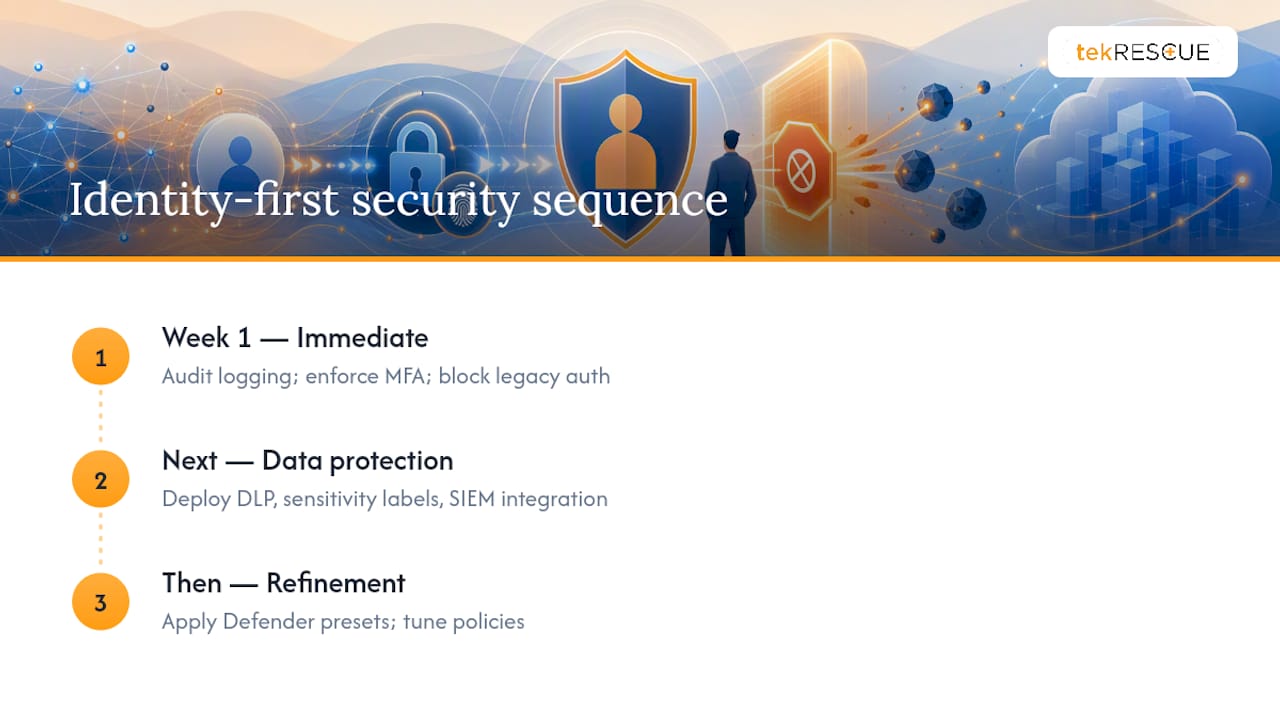
If you take one thing from this checklist, make it this: audit logging and MFA enforcement should happen in week one, not quarter three. DLP, sensitivity labels, and SIEM integration matter, but they protect data that’s already behind a locked identity layer. Get the lock right first. The rest is refinement, not foundation.
— Randy Bryan
Get Microsoft 365 Locked Down Without Adding to Your Workload
Reading a checklist and actually implementing Conditional Access, DLP policies, and Defender presets across a live tenant are two different jobs, especially when your team already has a full plate. Some businesses choose to engage external experts to ensure Microsoft 365 is secured correctly the first time, avoiding lengthy internal ramp-up periods.
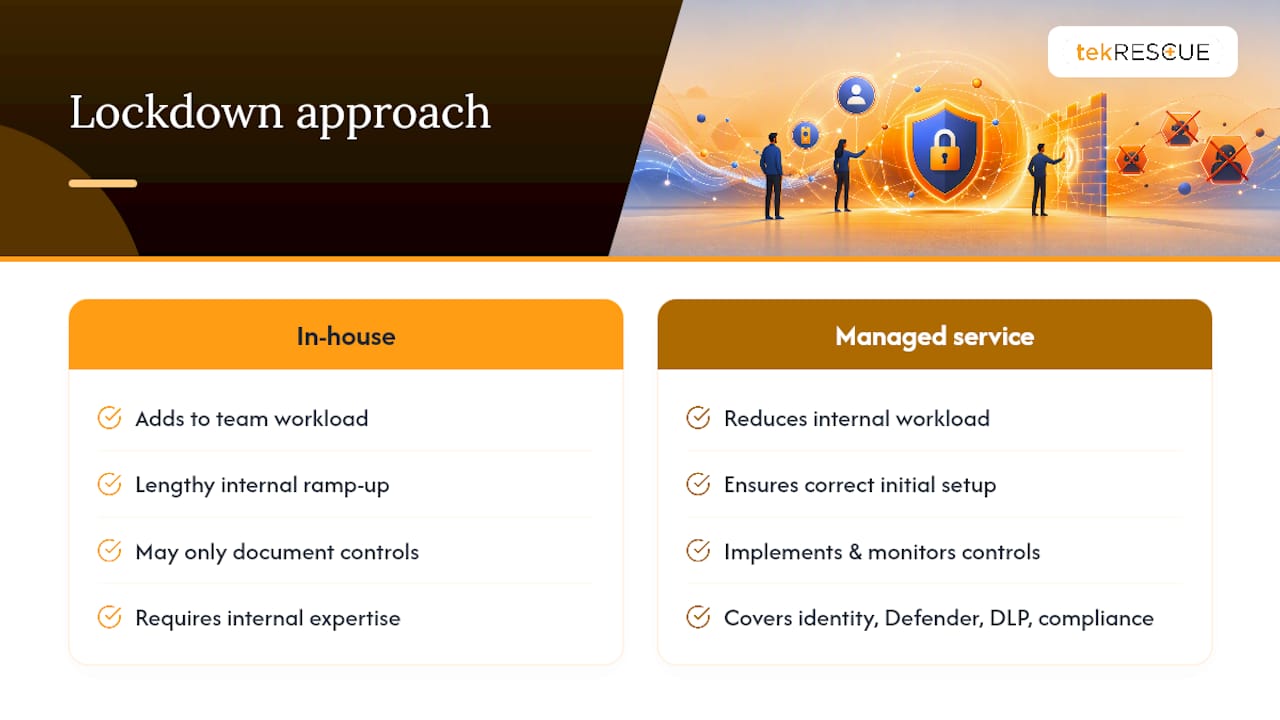
Certain managed IT and cybersecurity services can address priorities such as identity hardening, Defender configuration, DLP design, and compliance work for HIPAA and FTC standards where applicable. If your organization handles sensitive client or patient data and needs those controls implemented and monitored rather than just documented, start with a managed IT services consultation to see where your tenant stands today.
Sources
- Microsoft 365 for business security best practices – Microsoft 365 admin | Microsoft Learn
- CISA cybersecurity advisory AA20-120A
- Microsoft 365 security misconfigurations and how to fix them
FAQ
Is there a fake Microsoft security alert I should watch for?
Yes. Fake Microsoft security alerts are one of the most common phishing tactics, often mimicking sign-in notifications or account suspension warnings to steal credentials. Verify any security alert by going directly to admin.microsoft.com rather than clicking a link in the message.
Do I need antivirus if I have Microsoft 365?
Microsoft 365 includes Defender protections for email and, on eligible plans, endpoint devices, but a full antivirus or endpoint detection strategy still depends on your specific licensing tier and device mix. Business Premium tenants get more built-in coverage than Basic or Standard plans, so check what your license actually includes before assuming you’re covered.
What are some disadvantages of using Microsoft 365 for security?
Native retention and recovery windows are limited compared to a dedicated backup solution, and default settings across many tenants remain under-configured, leaving gaps like unblocked legacy authentication or missing DLP policies. Most of these gaps are configuration issues you can fix rather than fundamental product limitations.
How do I set up security settings in Office 365?
Start in the Microsoft 365 admin center by enabling Security Defaults or Conditional Access, then move into the Defender portal to configure Safe Links, Safe Attachments, and anti-phishing policies. Microsoft’s own security best practices guidance walks through this in the recommended order, starting with identity before moving to data and device protections.
Recommended
Table of Contents