
Avoid Six Months of Tickets: Microsoft 365 Migration for IT Teams
Successful Microsoft 365 migrations move identity first, content second, and only cut over after rehearsed validation. The right approach for most organizations combines native Microsoft tools like Migration Orchestrator with third-party tools only where native paths exclude a required workload. Pilot the highest-delegation-complexity users, design waves around the delegation graph, and validate every mailbox, permission, and shared link before you touch the decommission button.
TL;DR:
- Migrating identity mapping before content transfer is essential to prevent delegation and permission errors during the move.
- Native tools like Migration Orchestrator cover mail and OneDrive but require third-party solutions for complex SharePoint, Teams, or Power Platform components.
- Wave planning based on delegation graphs and workload complexity reduces rework and shortens migration timelines.
- Validation of permissions, access, and integrations must be thorough and completed before decommissioning the source tenant.
- A managed migration approach with phased assessment, pilot, validation, and post-migration support minimizes risks and compliance gaps.
Table of Contents
Table of Contents
- What Are the Different Types of Microsoft 365 Migration?
- Which Native Microsoft Tools Actually Handle the Migration?
- What Should Be in a Microsoft 365 Migration Checklist?
- How Do You Sequence Waves for Exchange, OneDrive, SharePoint, and Teams?
- What Should You Validate Before Decommissioning the Source Tenant?
- How Do Managed Migration Services Reduce Risk?
- What Is the Realistic Timeline and Cost of a Microsoft 365 Migration?
- How Do You Assess Readiness Before Migration Day?
- Should You Clean Up Data Before Migrating to Microsoft 365?
- How Do You Handle Third-Party Apps and Integrations During Migration?
- How Should You Communicate Migration Changes to End Users?
- What Backup and Rollback Plan Do You Need for Migration Failures?
- How Do You Drive Adoption After the Migration Is Complete?
- Microsoft 365 Migration: A Practical Risk-First Playbook
- Get a Managed Microsoft 365 Migration Team on Your Side
- Sources
- FAQ
What Are the Different Types of Microsoft 365 Migration?
Choosing the wrong migration method is the single most expensive mistake IT teams make, and it usually happens before day one of the actual move. Cutover migration moves all mailboxes at once, works for smaller organizations, and demands near-zero tolerance for error since there is no fallback batch. Staged migration spreads mailboxes across multiple passes over weeks, suited to mid-size directories still running on-prem Exchange. Hybrid migration keeps a foot in both worlds indefinitely, useful when a company needs to migrate gradually or must maintain a long coexistence period for compliance or geographic reasons. IMAP and PST import cover non-Exchange sources or archived data that needs a one-way lift with no synchronization.
Tenant-to-tenant migration is a different animal entirely, triggered by mergers, acquisitions, carve-outs, rebrands, or a change in reseller or distributor relationship. Here, Microsoft’s own guidance on cutover, staged, and hybrid methods applies to the mail workload, but SharePoint, Teams, and Power Platform each carry separate rules.
Quick decision points:
- Under 150 mailboxes, no compliance hold requirements: cutover.
- Long coexistence needed, phased user readiness: hybrid.
- M&A, divestiture, or brand separation: tenant-to-tenant with identity mapping first.
- Native tools cover mail and OneDrive but exclude Teams channels or complex SharePoint structures: bring in a third-party tool for that gap only.
Which Native Microsoft Tools Actually Handle the Migration?
Microsoft’s own toolset has grown considerably, but it still leaves real gaps that catch teams off guard. Migration Orchestrator coordinates mailbox migration, OneDrive migration, and Teams chats and meetings migration (currently in preview). It does not move identities, and it does not touch SharePoint sites, Teams channels, Power Platform flows, or Intune configurations. Anyone who treats Orchestrator as an all-in-one tenant mover will discover the exclusions the hard way, usually mid-migration.
Cross-Tenant User Data Migration (CTUDM), sometimes referenced as CTIM, is the licensing mechanism required for orchestrated mailbox and OneDrive moves between tenants. It typically carries a per-user one-time fee rather than a recurring subscription cost, so budget it as a project expense, not a line item in your monthly Microsoft 365 spend.
FastTrack remains available for eligible customers meeting Microsoft’s seat thresholds, and it can help with planning support and migration prerequisites, though it is guidance, not a hands-on execution team.
Two operational rules matter more than any tool selection:
- Never license a target user before identity mapping has written the correct ExchangeGuid values, or the mailbox migration will fail silently.
- Disable OneDrive auto-provisioning for migration-scope users in the target tenant before you begin, since an auto-provisioned library conflicts with the incoming data set.
Pro Tip: Run a test license assignment on two throwaway accounts in a sandbox tenant before you assign a single production license. It costs an hour and saves a weekend of rollback work.
What Should Be in a Microsoft 365 Migration Checklist?
Most migration failures trace back to discovery done by storage volume instead of by relationship. A mailbox with 40 GB and no delegates is far less risky than a 4 GB mailbox with twelve shared calendar permissions and three app registrations tied to it.
- Inventory by workload and delegation graph. Map every mailbox against its shared mailboxes, calendar delegates, and distribution list memberships, not just its size on disk.
- Build source-to-target identity maps. Decide the rule for ExchangeGuid writes before you touch a single account, since retroactive fixes are far more disruptive than getting it right the first time.
- Time license assignment deliberately. Assign licenses only after identity mapping completes for that batch, never before.
- Audit connected apps and integrations. Catalog every OAuth-connected app, Power Platform flow owner, shared mailbox delegation, and orphaned SharePoint site before migration day.
- Recreate governance rules in the target tenant. Conditional Access policies, DLP rules, retention labels, and Microsoft Purview configurations do not travel automatically. Reconciling them early avoids leaving a security blind spot open between environments, a point practitioner analysis of tenant-to-tenant risk raises repeatedly.
- Prep DNS and domain moves. Sequence domain verification and MX record changes so mail flow does not break mid-transition.
Pro Tip: Treat licensing parity as a starting point, not a finish line. Two users with identical license SKUs can still have wildly different feature access depending on service plan configuration, so verify actual feature availability, not just the license name.
How Do You Sequence Waves for Exchange, OneDrive, SharePoint, and Teams?
Wave design is where most migration timelines go sideways, usually because someone batches by convenience instead of by risk.
Exchange Online migrations perform best in batches sized to account for Microsoft’s documented throttling behavior, which limits both user-level and service-level migration velocity. Smaller batches with monitored throttling responses beat one massive push every time. Cutover works for small, low-complexity tenants; staged and hybrid fit larger or more compliance-sensitive environments.
OneDrive and SharePoint require a decision between site-level and item-level migration. Site-level moves preserve structure faster, but permissions almost always need remapping on the other side, and external sharing links break unless rebuilt manually or with a migration tool that supports link remediation. SharePoint’s own migration guidance covers the Migration Admin role and incremental pass limitations worth reading before wave one.
Teams is the workload with the most quiet gaps. Chat and meeting history migrate through Orchestrator’s preview capability, but Teams channel conversations often do not carry over cleanly, and channel structure frequently needs manual reconstruction.
Power Platform apps and flows need owner remapping and connector reconfiguration, since a flow’s connections authenticate against the original tenant’s identity.
The batching rule that saves the most rework: move principals and delegates together. Splitting a manager into wave one and their assistant with calendar-delegate access into wave three breaks calendar functionality for both, every time.
- Pilot with your highest-delegation-complexity users, not your easiest ones.
- Scale up only after the pilot wave passes full validation, not just spot checks.
What Should You Validate Before Decommissioning the Source Tenant?
Validation is not a formality, it is the gate between “migrated” and “migrated successfully.” Skipping it is how organizations discover broken calendar delegation three weeks after everyone assumed the project was done.
Check these items in every wave before moving to the next:
- Mailbox access and send-as permissions for every migrated user
- Delegated and shared mailbox access, tested by the actual delegate, not just the owner
- Calendar functionality, including recurring meetings and room bookings
- SharePoint permissions sampled across a cross-section of sites, not just the ones IT already knows about
- Teams access and channel visibility for migrated users
Keep the source tenant active and untouched until validation completes across every wave. Microsoft’s own deployment and migration guidance reinforces rehearsing the cutover event rather than treating go-live as the first real test. Monitor move request reports and user-reported issue tickets daily during the validation window, and triage by priority: identity reconciliation issues first, permission fixes second, external link rebuilds third.
How Do Managed Migration Services Reduce Risk?
Tenant-to-tenant migrations rarely fail because of a missing feature. They fail because of an undiscovered dependency: an app nobody remembered, a delegate relationship nobody mapped, a Power Platform flow with an owner who left the company two years ago. tekrescue’s approach to Microsoft 365 migration work centers on finding those dependencies before they become outages, backed by direct experience supporting HIPAA-regulated clients who cannot afford a compliance gap during a tenant move.
A managed engagement typically runs through six phases:
- Assess: full workload and delegation-graph inventory, not just a storage report
- Plan: identity mapping, license timing, and governance rule reconstruction
- Pilot: high-complexity users first, validated end to end
- Migrate: waves grouped by delegation graph, monitored for throttling
- Validate: every checklist item above, confirmed before decommission
- Close: documentation handoff and post-migration support transition
That structure catches the app-dependency and permission problems that native tooling alone will not flag until a user calls the help desk.
What Is the Realistic Timeline and Cost of a Microsoft 365 Migration?
Timelines vary more with mailbox complexity than mailbox count. A 200-user tenant with clean delegation and no Power Platform footprint can move in two to four weeks. The same tenant with heavy shared mailbox delegation, custom Power Automate flows, and multiple SharePoint hub sites can take two to three months, and that is with a competent team running it.
Budget for three cost categories, not one. First, licensing: Microsoft 365 subscription costs continue regardless of migration status, so overlapping licenses during coexistence periods add real expense. Second, the CTUDM per-user fee for orchestrated cross-tenant mailbox and OneDrive moves, which is a one-time charge rather than recurring. Third, labor, whether internal IT time or a managed migration partner, and this is usually where organizations underestimate by the widest margin.
The mistake most planning documents make is treating migration as a fixed-price line item. It is a variable-cost project shaped by delegation complexity, app dependency count, and how much governance reconstruction the target tenant needs. A tenant with heavy Conditional Access policies and DLP rules takes longer to reconstruct than one with defaults left untouched. Build your timeline around the messiest workload, not the average one, and build in a validation buffer of at least one week per wave. Rushing validation to hit an arbitrary go-live date is the single most common source of post-migration support tickets.
How Do You Assess Readiness Before Migration Day?
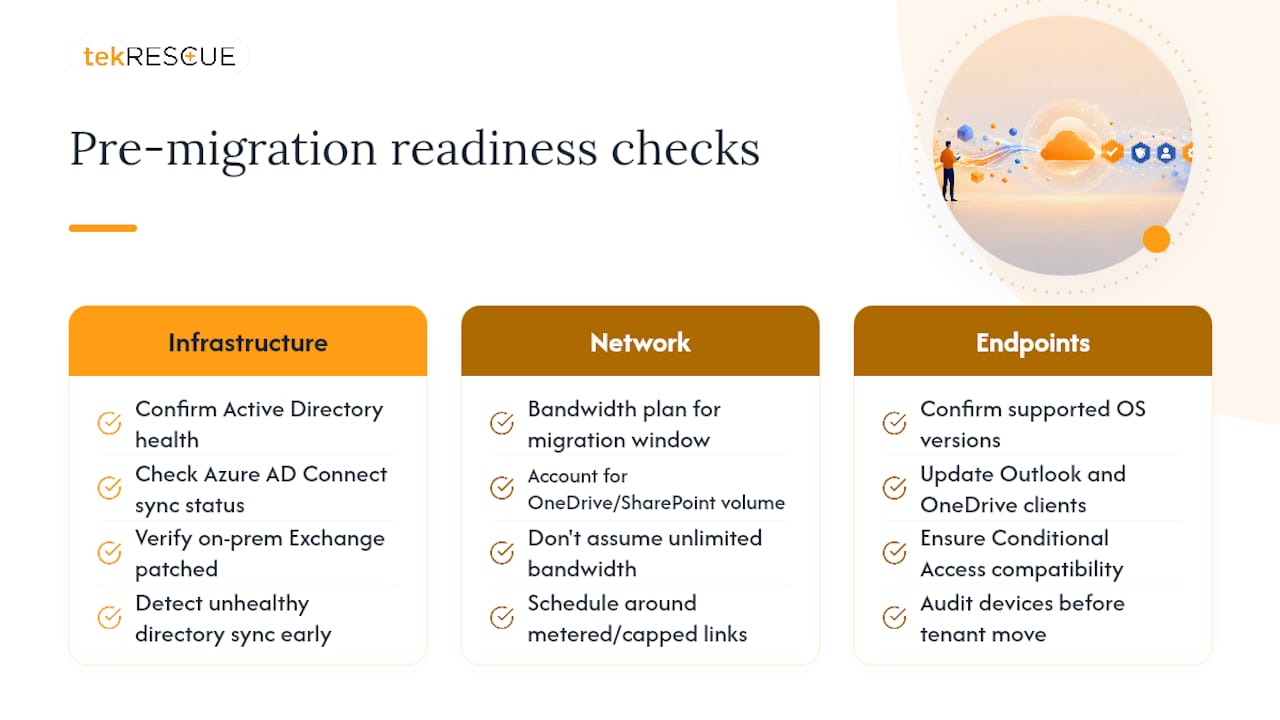
A pre-migration assessment that only checks license counts misses the failures that actually happen. Real readiness assessment covers three layers: infrastructure, network, and endpoints.
Infrastructure readiness means confirming Active Directory health if you are running hybrid identity, checking Azure AD Connect sync status, and verifying that on-prem Exchange servers (if any remain) are patched to a supported level. Unhealthy directory sync is one of the most common causes of stalled mailbox migrations, and it is almost always discoverable before migration day, not during it.
Network readiness covers bandwidth planning for the migration window itself. Moving hundreds of gigabytes of OneDrive and SharePoint content consumes real bandwidth, and organizations with metered or capped internet connections need to schedule around business hours rather than assume unlimited headroom. Test your actual sustained throughput, not the number on your ISP contract, since real-world speeds during business hours often run well below advertised rates.
Endpoint readiness means confirming every device that will need to reconnect to the new tenant has a supported OS version, updated Outlook and OneDrive sync clients, and Conditional Access compatibility. Devices still running outdated sync clients frequently fail to reconnect automatically after a tenant-to-tenant move, generating a wave of help desk tickets that a pre-migration endpoint audit would have caught.
Run this assessment at least three to four weeks before your first pilot wave, not the week before. Findings here routinely change wave sequencing, and discovering an unhealthy directory sync mid-migration is far more disruptive than catching it during planning.
Should You Clean Up Data Before Migrating to Microsoft 365?
Migrating clutter into a new tenant just gives you the same clutter with a new address. Pre-migration cleanup is one of the most skipped steps, and it is also one of the cheapest ways to shrink your migration timeline.
Start with mailbox archival. Identify mailboxes with years of unused PST archives or dormant shared mailboxes nobody has accessed in over a year, and decide before migration day whether each one gets archived, migrated, or retired. Every gigabyte you do not migrate is bandwidth and validation time you do not spend.
On the SharePoint and OneDrive side, orphaned sites (created by former employees, abandoned projects, or long-dead initiatives) are common and easy to miss without a delegation-graph-style inventory. Run a site ownership audit before migration, reassign or archive orphaned sites, and resolve duplicate or near-duplicate document libraries that accumulated over years of ad hoc file sharing.
Retention and legal hold requirements complicate this. Do not delete or archive anything under an active retention policy or litigation hold without legal sign-off, even if it looks like clutter. The safer sequence is: identify hold status first, then decide cleanup actions, never the reverse.
Cleanup done well typically trims real migration volume, which shortens batch windows, cuts throttling exposure, and reduces the surface area you need to validate after cutover. It is unglamorous work, but it pays for itself in every wave that follows.
How Do You Handle Third-Party Apps and Integrations During Migration?
Every tenant accumulates integrations nobody fully remembers: a CRM connector, a Power Automate flow that emails a report every Monday, an OAuth-connected app a marketing team set up two years ago. These are the dependencies that cause the post-migration surprises practitioner analysis of tenant-to-tenant risk warns about repeatedly, and native migration tools do not discover them for you.
Start with a full OAuth-connected app audit using your tenant’s enterprise application registry. Every third-party app with delegated or application permissions needs an owner identified and a reconnection plan before migration, not after. Power Platform flows need special attention: each flow authenticates using its owner’s identity, so a tenant move breaks the connection unless someone remaps ownership and reauthorizes each connector individually.
Custom SharePoint solutions, embedded web parts, and any app calling Microsoft Graph API with hardcoded tenant IDs need code-level review. Hardcoded tenant references are a common and easy-to-miss failure point that only surfaces when a user tries to use the integration post-migration and gets a silent error.
Build your integration inventory during the same discovery phase as your delegation graph mapping, not as an afterthought once content migration is underway. Assign each integration an owner, a reconnection owner, and a test plan, and validate each one explicitly during your post-migration checklist rather than assuming it will “just work” because the underlying data moved successfully.
How Should You Communicate Migration Changes to End Users?
The best-executed technical migration still fails from a user-experience standpoint if nobody told people what was changing and when. Change management for a Microsoft 365 migration needs to start well before the first pilot wave, not the week of cutover.
Send an initial notice at least three to four weeks out explaining why the migration is happening, what will change for the user, and what will stay exactly the same. Most users care about three things: will they lose email, will their files still be where they left them, and will they need to do anything themselves. Answer those directly and skip the technical detail about identity mapping and delegation graphs; that information belongs in your IT documentation, not the all-staff email.
Segment your communication by migration wave. Pilot users need more detailed instructions and a direct line to IT for issue reporting, since they are your early warning system for problems that will affect later waves. General staff need a shorter notice closer to their specific migration date, with a clear “what to expect” list: sign-in prompts, a brief access gap window, and where to report problems.
Designate a single feedback channel, whether a help desk queue, a dedicated Teams channel, or an email alias, and staff it actively during each wave’s migration window. Silence after a migration email breeds anxiety and support tickets faster than almost anything else. A short “we’re here, here’s what to expect” follow-up during the actual cutover window reduces panic tickets significantly, based on how predictably confused users get during any access change, even a well-planned one.
What Backup and Rollback Plan Do You Need for Migration Failures?
Every migration plan needs an honest answer to the question nobody wants to ask: what happens if this wave fails halfway through?
The baseline protection is simple but frequently skipped: keep the source tenant fully intact and untouched until the corresponding target wave passes complete validation. This is not a suggestion, it is the actual rollback plan for most migration failure scenarios, since a mailbox move that fails partway can typically be retried from the unaltered source without data loss, as long as nobody has already decommissioned it.
For content workloads, take a snapshot-style export of critical SharePoint sites and OneDrive libraries before migration begins, independent of your production Microsoft 365 backup. Migrating content is not the same as backing it up, and Microsoft 365’s native retention tools were never designed to function as a full backup solution in the way a dedicated backup platform is.
Define your rollback trigger criteria before migration day, not during a crisis. Decide in advance what failure threshold pauses a wave: a certain percentage of failed mailbox moves, a permission-remapping failure rate, or a specific data-integrity check failing. Ambiguity here leads to a mid-migration argument about whether to push forward or stop, exactly when a fast decision matters most.
Document a specific rollback procedure for each workload separately. Rolling back a failed mailbox batch looks nothing like rolling back a failed SharePoint site migration, and treating them as interchangeable during an actual incident wastes time you do not have.
How Do You Drive Adoption After the Migration Is Complete?
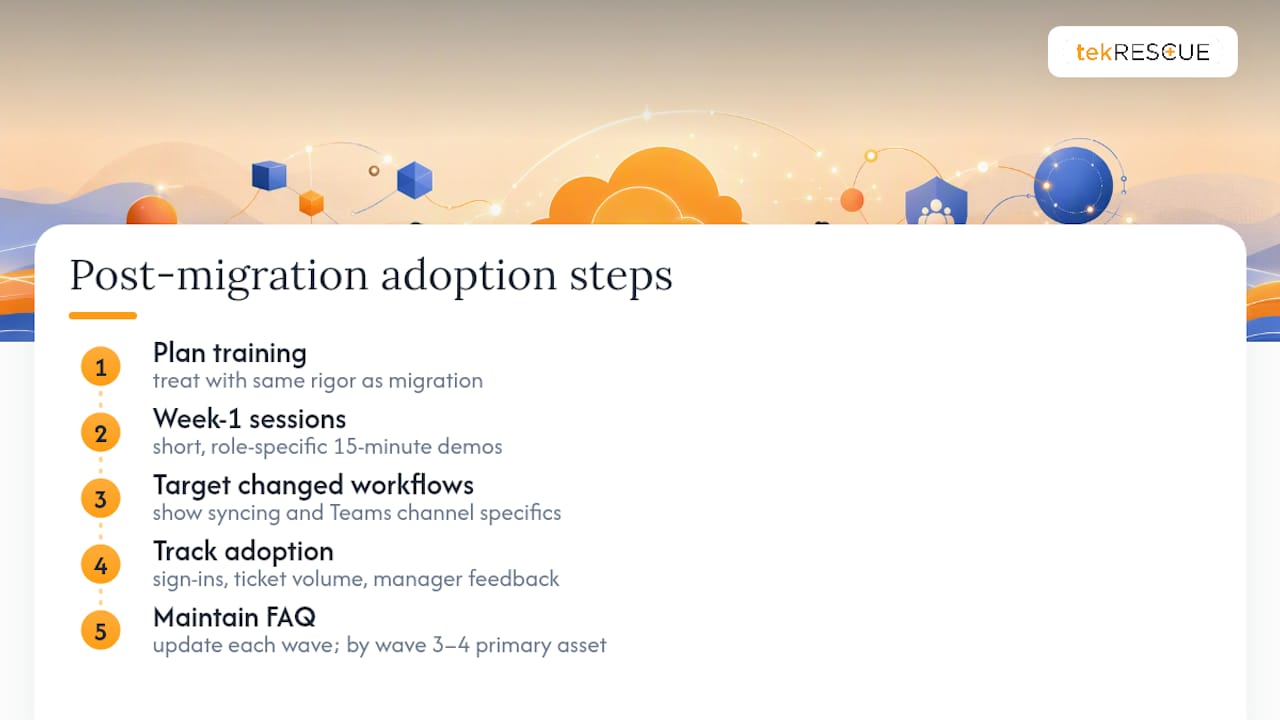
A technically flawless migration that nobody knows how to use is still a failed project from a business standpoint. Post-migration training needs to be planned with the same rigor as the migration itself, not bolted on as an afterthought once the data has landed.
Schedule short, role-specific training sessions in the first week after each wave’s cutover, while the change is still fresh and questions are still top of mind. A fifteen-minute session covering “here’s what looks different, here’s where your files are, here’s who to contact” prevents far more support tickets than a lengthy all-hands training delivered weeks after the fact.
Pay particular attention to any feature or workflow change that differs from what users had before. If your organization is moving from an on-prem file server to SharePoint and OneDrive, users need explicit guidance on syncing libraries locally, not just a link to a help article they will not read. If Teams is new or expanded post-migration, show people how their specific team’s channel structure works rather than a generic overview.
Track adoption with real signals: sign-in success rates, help desk ticket volume by category, and direct manager feedback during the two weeks following each wave. A spike in “can’t find my files” tickets usually points to a training gap, not a technical failure, and it is fixable with a focused follow-up session rather than a rollback.
Keep a living FAQ document updated with the actual questions your help desk fields during each wave. By wave three or four, that document becomes your best training asset, built entirely from real user confusion rather than a generic template.
Microsoft 365 Migration: A Practical Risk-First Playbook
The conventional advice on Microsoft 365 migration treats it as primarily a data-transfer problem: move the mailboxes, move the files, verify the counts match, call it done. That framing misses where the actual damage happens. Identity and permissions break far more migrations than storage or bandwidth ever will, and most published guides underweight that risk in favor of tooling comparisons.
The judgment this research actually supports is blunt: sequence identity mapping before any content write, every time, with no exceptions for schedule pressure. Organizations that license target users before ExchangeGuid mapping completes create failures that look like random mailbox errors but are actually sequencing mistakes, and those are painful to diagnose after the fact.
What gets overrated is tool selection. Whether you use Migration Orchestrator, a third-party platform, or a hybrid approach matters less than whether your wave design respects the delegation graph. A perfectly configured tool moving poorly batched users still breaks calendar delegation and shared mailbox access.
What the reader should prioritize first is discovery, specifically the unglamorous work of mapping who delegates to whom and which apps depend on which identities. That work does not show up in a demo, but it is what separates a migration that finishes on schedule from one that generates support tickets for six months.
— Randy Bryan
Get a Managed Microsoft 365 Migration Team on Your Side
tekrescue runs Microsoft 365 migrations the way this playbook describes: identity mapped before content moves, waves built around delegation graphs, and validation treated as a gate, not a formality. That approach comes from direct experience supporting HIPAA-regulated clients and other regulated small and medium-sized businesses where a permissions gap or a compliance blind spot during migration is not an acceptable risk. tekrescue’s managed IT services cover the full engagement, from pre-migration discovery through post-migration adoption support, so your internal team is not left reconciling a broken delegation graph after hours.
If your organization is planning a tenant move, an M&A-driven migration, or a long-overdue Exchange transition, start with a managed IT services consultation to scope the assessment phase before you commit to a timeline.
Sources
- Ways to migrate multiple email accounts to Microsoft 365 or Office 365
- Microsoft 365 Tenant-to-Tenant Migration Without Data Loss: The Decisions That Matter Most – Petri
FAQ
What Is a Microsoft 365 Migration?
A Microsoft 365 migration is the process of moving mailboxes, files, and collaboration data (Exchange, OneDrive, SharePoint, and Teams) from one environment into Microsoft 365, or between two Microsoft 365 tenants during events like mergers or rebrands.
What Tool Does Microsoft Provide for Migration?
Microsoft’s primary native tool is Migration Orchestrator, which handles mailbox, OneDrive, and Teams chat/meeting migration (Teams is currently in preview), paired with Cross-Tenant User Data Migration (CTUDM) licensing for cross-tenant moves. FastTrack offers additional planning support for eligible customers.
Can You Transfer Microsoft 365 From One Computer to Another?
Microsoft 365 apps and data live in the cloud, not on a single device, so signing into your account on a new computer restores your mailbox, OneDrive files, and app licenses automatically once you sign in with the same credentials.
What Are the Main Types of Office 365 Migration?
The main methods are cutover (all at once, for smaller organizations), staged (phased over time), hybrid (long-term coexistence), IMAP or PST import (for non-Exchange sources), and tenant-to-tenant migration (for mergers, carve-outs, or rebrands).
How Long Does a Typical Microsoft 365 Migration Take?
A clean migration for around 200 users can finish in two to four weeks, while tenants with heavy delegation, Power Platform dependencies, or complex governance rules often need two to three months for a properly validated move.
Recommended
Table of Contents