
MFA for Small Businesses: 6 Priorities, Passkeys, and Recovery
If you run a small business, here is the uncomfortable truth: enable multi-factor authentication on admin and email accounts today, and prefer phishing-resistant methods like passkeys or security keys wherever your tools support them. Password-only logins are no longer a defensible line of defense. The attackers moving fastest against small businesses are already automating credential theft at a scale no single IT person can out-watch.
TL;DR:
- Use passkeys or security keys for administrators and finance staff; authenticator apps with number matching suit other employees, while SMS and email codes are temporary.
- Secure administrator accounts, email, identity providers, remote access, and financial applications first; disable POP3 and IMAP where possible because they can bypass email MFA.
- Inventory every login, pilot enrollment and account recovery, then enforce MFA in department waves; provide backup methods and remove weak fallbacks before launch.
- The FTC Safeguards Rule requires many nonbank financial institutions to use MFA or an equivalent control for customer information; HIPAA ties authentication strength to risk.
Table of Contents
Table of Contents
- Quick action checklist: what to enable first and in what order
- Types of MFA and which ones actually hold up
- Where to enable MFA first (systems and accounts that matter most)
- Step-by-step implementation plan: from assessment to enforcement
- Rollout and adoption: training, mandates, and auditing
- Compliance and regulated-sector check: FTC and HIPAA expectations
- How tekRESCUE helps: a practical path to full MFA coverage
- How to set up MFA in practice for a small team
- Common MFA pitfalls and how to avoid them
- Integrating MFA with the software you already run
- What MFA actually costs a small business
- A realistic 90-day view on priorities and trade-offs
- Get MFA rolled out without the trial and error
- FAQ
- Sources
Quick action checklist: what to enable first and in what order
No long project plan is needed to start protecting your business. Most small business platforms let you turn on MFA within minutes through existing console settings or your identity provider’s conditional access rules. No new budget required.
Work through this order over the next few days:
- Lock down every admin and super-admin account first, since a compromised admin credential gives an attacker the keys to everything else.
- Enable MFA on email and your identity provider, because email is the recovery path for almost every other system you own.
- Secure remote access and VPN logins, which are a common entry point for attackers scanning for exposed credentials.
- Protect privileged business applications like payroll, billing, and CRM platforms that hold money or customer data.
- Extend coverage to file storage and shared drives where sensitive documents live.
- Add MFA to backup and recovery systems last, since these are often overlooked until it is too late.
Document any account you cannot cover immediately, note why, and schedule a follow-up date. An exception list beats silence, and it gives you a paper trail if a regulator or insurer ever asks.
Types of MFA and which ones actually hold up
Not every form of MFA offers the same protection, and the gap between the strongest and weakest options is wider than most owners assume.
- FIDO/WebAuthn passkeys and hardware security keys resist phishing because the credential is cryptographically bound to the website or app, so a fake login page cannot capture it.
- Authenticator apps using time-based codes or push notifications with number matching are a solid middle tier, far better than nothing, though still vulnerable to sophisticated real-time phishing.
- SMS and email one-time codes are the weakest widely used option because they can be intercepted or redirected, and should be treated as a temporary bridge, not a destination.
- Biometrics such as a fingerprint or face scan work well as one factor but still need a second factor behind them for real protection.
Phishing-resistant MFA using FIDO/WebAuthn is the only widely available method built specifically to block credential-capture phishing, while CISA guidance identifies SMS and email codes as the weakest forms of MFA. That single fact should shape every rollout decision you make this year.
For a team with a mix of phones, laptops, and shared devices, standardize on an authenticator app as the baseline and push toward passkeys for any system that supports them. Mixed-device environments do not need a single tool. They need one consistent minimum standard everyone follows.
Where to enable MFA first (systems and accounts that matter most)
Limited time and a small IT budget mean you cannot protect everything on day one. Risk reduction comes from sequencing, not volume.
Start with the systems where a single compromised login causes the most damage:
- Admin consoles for your domain, cloud platform, and identity provider, since these control every other account.
- Your identity provider and company email, the two systems most attackers try first.
- VPN and remote access tools, especially if any staff work outside the office.
- Payroll, billing, and banking portals where a breach means direct financial loss.
- CRM and customer data platforms that hold information you are contractually obligated to protect.
- Backup and recovery admin interfaces, which attackers increasingly target to block your recovery options before deploying ransomware.
- Privileged service accounts, which often get ignored because no human logs in daily.
One gap deserves special attention: legacy authentication protocols like POP3 and IMAP often bypass MFA entirely, creating a silent back door even after you think email is locked down. If your mail system still allows these protocols, disable them or restrict their use as part of this same pass. Our Microsoft 365 security guidance walks through exactly how to find and close that gap in a Microsoft 365 environment.
Step-by-step implementation plan: from assessment to enforcement
Turning an MFA policy into something that actually sticks takes a sequence, not a single announcement email.
- Inventory your accounts and systems. A spreadsheet listing every login, who owns it, and its risk level is enough for most small teams. No special software required at this stage.
- Select methods by group. Assign passkeys or security keys to admins and finance staff where supported, and authenticator apps for the rest of the team.
- Run a small pilot. Test enrollment and, just as important, test the recovery process before you ever lose a device. A pilot that only tests login and skips recovery testing will fail you later.
- Roll out in waves. Move department by department rather than all at once, so your help desk is not flooded on day one.
- Enforce with technical controls. Use conditional access rules to require MFA at sign-in rather than relying on voluntary enrollment, which CISA’s practical guidance flags as the difference between real coverage and good intentions.
- Remove weak fallback options. Once strong MFA is active, disable SMS or email code fallbacks that would otherwise undercut the upgrade.
- Schedule recurring audits. Regularly check and review coverage after staff changes to catch gaps before they become incidents.
Pro Tip: Test account recovery with a volunteer employee before full rollout. The question “what happens when someone loses their phone” is far cheaper to answer during a pilot than during a Monday morning lockout.
Rollout and adoption: training, mandates, and auditing
The technical switch is the easy part. Getting a team of busy employees to actually use MFA without finding workarounds takes a plan.
- Have leadership communicate the change directly and set a visible enrollment deadline, since a mandate that comes only from IT tends to get deprioritized.
- Enforce MFA through technical controls rather than hoping for voluntary compliance, then audit monthly to catch anyone who slipped through.
- Issue at least one backup authentication method per employee before go-live, so a lost phone does not turn into a support ticket emergency.
- Keep training short: a one-page reference card and a five-minute walkthrough cover most of what staff need.
- Build a clear process for device migrations, since new phones and replaced laptops are the most common reason MFA enrollment breaks down after rollout.
Pro Tip: Give new hires their MFA setup as step one of onboarding, not an afterthought. It is far easier to build the habit on day one than to retrofit it after someone has spent a year logging in with a password alone.
Short awareness sessions pay off here too. Our security awareness training guidance outlines how to build a quarterly training cadence that keeps MFA habits from eroding over time.
Compliance and regulated-sector check: FTC and HIPAA expectations
If your business touches customer financial data or protected health information, MFA is not just good practice. It intersects directly with federal requirements.
The FTC Safeguards Rule requires many non-banking financial institutions to implement MFA, or a reasonable equivalent control, for anyone accessing customer information. If that applies to your business, document which systems hold customer information and confirm MFA coverage on each one.
For healthcare-adjacent businesses, HHS guidance on the HIPAA Security Rule does not mandate one specific technology. It calls for a risk analysis to choose authentication strength appropriate to the data involved, with phishing-resistant MFA recommended for remote access and email. Build MFA requirements into your written security program, extend the same expectation to any service providers who touch your systems, and keep a record of any documented exceptions.
How tekRESCUE helps: a practical path to full MFA coverage
We built our cybersecurity services around exactly this kind of rollout. Our team runs the risk assessment, picks methods suited to your mix of devices and applications, pilots enrollment with a small group, and manages the full staged rollout so your staff never faces an all-at-once surprise.
For businesses that also need HIPAA alignment, we fold MFA into the broader compliance picture rather than treating it as a one-off checkbox. Once rollout is complete, our managed IT services keep monitoring coverage, auditing for gaps after staff changes, and catching legacy protocol exposure before it becomes an incident. Reach out through our cybersecurity services page when you are ready to start with an assessment.
How to set up MFA in practice for a small team
Setting up MFA does not require an enterprise IT department. For most small teams, the fastest path starts inside the admin settings of the platform already holding your email and files, such as a cloud productivity suite or identity provider.
Begin with your identity provider or email admin console and turn on MFA enforcement for all users, not just a recommendation toggle. From there, have each employee enroll their chosen method, ideally an authenticator app or passkey, during a short guided session rather than leaving it to self-service instructions buried in an email. Confirm each person also sets up a backup method, since a phone left at home should never mean a locked-out workday.
Once the core identity system is covered, repeat the same enrollment pattern for any standalone application that does not inherit MFA from your identity provider, such as a separate accounting platform or industry-specific software. Keep a short written log of which systems are covered and which still rely on password-only access, and revisit that log every quarter. A simple spreadsheet works fine here. The goal is coverage you can prove, not a tool you have to maintain.
Common MFA pitfalls and how to avoid them
Most MFA rollouts fail quietly rather than dramatically, through small gaps that accumulate over months.
User resistance is the most common one. Employees find MFA mildly inconvenient and will look for the path of least resistance, which often means falling back to a weaker method if you leave one available. The fix is removing weak fallback options once strong MFA is active, not just hoping people choose correctly.
Backup method vulnerabilities cause the second most common failure. A security question or an SMS code left active as a recovery option undoes much of the protection a stronger primary method provides. Treat your backup method with the same scrutiny as your primary one.
Device management gaps round out the list. When an employee upgrades phones or leaves the company, their MFA enrollment does not automatically disappear unless someone actively removes it. Build device changes and offboarding into your standard checklist, not as a separate afterthought. Our guide to essential small business security controls covers how MFA fits alongside the other controls that close these same gaps.
Integrating MFA with the software you already run
Most small businesses are not starting from zero. You likely already run a cloud productivity suite, a CRM, and a handful of specialized tools, and each one handles MFA a little differently.
Cloud productivity platforms like the ones powering company email and shared drives typically offer MFA enforcement at the admin level, which means you can require it for every user without configuring each account individually. This is almost always the fastest win, since it covers email, calendar, and file storage in one setting change.
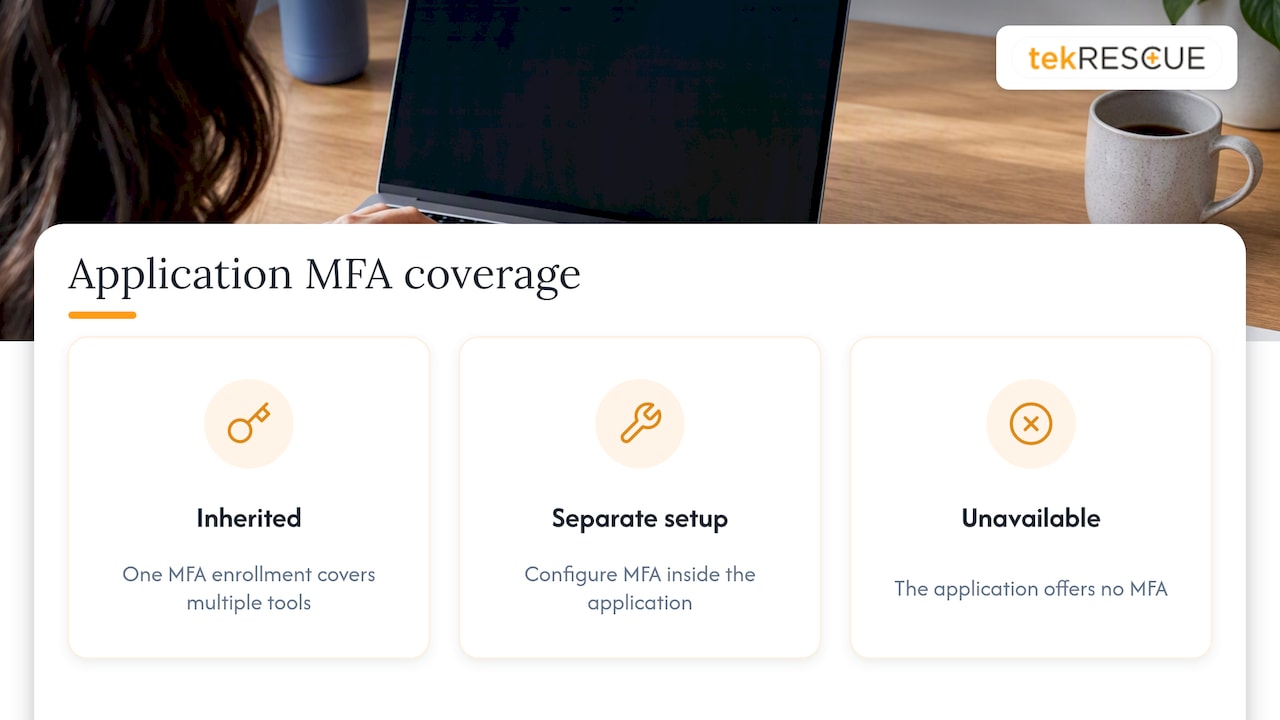
CRM platforms and industry-specific software are more varied. Some inherit authentication from your identity provider through single sign-on, which is the simplest outcome since one MFA enrollment covers multiple tools. Others require a separate MFA setup inside the application itself. When evaluating any new software purchase, ask directly whether it supports single sign-on or at minimum authenticator-app MFA, since a tool that only offers SMS codes is adding a weak link to an otherwise strong setup.
The practical approach is a short inventory of every application your team logs into, noting whether MFA is inherited, separately configured, or unavailable. That list becomes the backbone of your rollout plan and tells you exactly where gaps remain.
What MFA actually costs a small business
The licensing cost for MFA itself is often zero or close to it. Most cloud productivity suites, identity providers, and modern business software include MFA enforcement as a standard feature rather than a paid add-on, and authenticator apps on employee phones carry no extra charge.
Hardware security keys are the one line item with a real per-unit cost, since each physical key is purchased individually for staff who need the strongest available protection, typically admins and finance roles rather than the entire team. Keeping hardware keys limited to your highest-risk accounts keeps this cost manageable without sacrificing protection where it matters most.
Training is a smaller cost than most owners expect. A short walkthrough during onboarding and a one-page reference card cover the bulk of what staff need, with the real cost showing up in staff time during rollout rather than in any invoice.
The larger cost consideration is not the MFA rollout itself but what happens without it: locked-out employees, help desk tickets from confused staff, and the time spent fixing gaps after the fact. A planned rollout with a pilot phase and clear training spends that time once, deliberately, instead of repeatedly, by accident.
A realistic 90-day view on priorities and trade-offs
In the first 30 days, lock down admin and email accounts and run a pilot on your highest-risk group. In days 30 to 60, extend coverage to remote access and privileged applications while you test recovery workflows. The remaining 30 days should go toward auditing coverage, closing legacy protocol gaps, and planning a shift toward passkeys wherever your tools support them.
The usability versus security trade-off is real, but it is smaller than it looks. An authenticator app asks little of most employees, while a hardware key asks more setup for meaningfully stronger protection. Reserve the stronger option for the accounts that would cause the most damage if compromised, and build everything else on a consistent baseline rather than chasing a single perfect standard for every role.
— Randy Bryan
Get MFA rolled out without the trial and error
Working through method selection, pilot testing, and staged enforcement on top of running a business is where most MFA projects stall. We handle that sequence as a managed engagement instead of a side project you squeeze in between everything else.
Our process typically includes:
- A risk assessment that maps your accounts and flags the highest-priority gaps first.
- Method selection suited to the devices and applications your team already uses.
- A staged rollout with pilot testing, training, and recovery workflows built in before enforcement goes live.
- Ongoing monitoring through our managed IT services so coverage gaps get caught after staff changes, not months later.
For businesses automating broader security operations alongside MFA, NexteraAI offers process assessment and real-time security management tools worth a look if you want automation layered on top of your core controls.
Visit our cybersecurity services page to schedule an assessment and get a rollout plan built around how your team actually works.
FAQ
What authentication methods are available in Microsoft Authenticator?
Microsoft Authenticator supports push notifications with number matching, time-based one-time passcodes, and passwordless sign-in through the app itself. It also supports passkey functionality on compatible devices, which gives it a phishing-resistant option alongside its traditional codes.
What is better, 2FA or MFA?
MFA is the broader term that includes two-factor authentication as one version of it, so the comparison is less about which is better and more about which methods you use within either approach. A phishing-resistant method like a passkey used as a second factor offers stronger protection than a weaker factor like an SMS code, regardless of whether you call the overall setup 2FA or MFA.
How do I set up my MFA?
Start inside the admin settings of your email or identity provider and enable MFA enforcement for all users, then have each employee enroll an authenticator app or passkey along with a backup method. Extend the same setup to any standalone business application that does not inherit authentication from your main identity provider.
What are the top two-factor authentication solutions?
The strongest widely available option is phishing-resistant authentication using FIDO/WebAuthn, delivered through passkeys or hardware security keys, which CISA identifies as the recommended standard. Authenticator apps using time-based codes or push notifications with number matching are a strong practical middle option, while SMS and email codes should be treated as the weakest, most temporary choice.
Sources
- Require Multifactor Authentication | CISA
- FTC Safeguards Rule: What your business needs to know | Federal Trade Commission
- HIPAA security rule resources | HHS
Recommended
Table of Contents