
Harden WordPress in 30 and 90 Days: A Prioritized Plan for SMB Admins
Update WordPress core, every plugin, and your PHP version first. That single action closes the door most attackers walk through. Then enable multi-factor authentication on every admin account and confirm your backups actually restore, not just that they exist. Everything else in a hardening plan builds on those three moves, and we walk through how to implement and sustain them below.
TL;DR:
- Updating WordPress, plugins, and PHP rapidly closes the most common attack vectors exploited by automated scans.
- Enabling multi-factor authentication on all admin accounts and regularly testing backup restores dramatically reduce the risk of successful breaches.
- Locking down file permissions, securing wp-config.php, and blocking PHP execution in uploads protect against post-intrusion damage.
- Implementing server-level security headers, firewalls, and strict file storage practices adds crucial layers of defense beyond the application layer.
- Ongoing monitoring, vulnerability scans, role management, and structured patching ensure sustained security and quick response if compromised.
Table of Contents
Table of Contents
- Why WordPress Sites Are a Constant Target
- Foundational Controls: Updates, Backups, MFA, and Passwords
- Locking Down Files, wp-config, and Secret Keys
- Server and PHP Hardening Beyond WordPress Itself
- Auditing Users and Restricting Access
- Choosing and Maintaining Plugins and Themes Safely
- Securing File Uploads and User Input
- Monitoring, Scanning, and Responding to a Breach
- Your 30 and 90-Day Hardening Checklist
- When In-House Hardening Hits Its Limit
- The Hardening Advice Nobody Wants to Hear
- Get Your Hardening Plan Implemented, Not Just Written Down
- FAQ
- Sources
Why WordPress Sites Are a Constant Target
WordPress runs a significant share of the web, and that scale is exactly why automated attackers bother with it. Scanners do not pick targets one at a time. They sweep the internet for known plugin and theme vulnerabilities, then fire exploit code at every matching site within hours of a flaw going public. If your plugin was never updated past the vulnerable version, you are caught in that sweep whether or not anyone ever “targeted” you specifically.
The leading entry points are not exotic. Weak or reused admin passwords, brute-force login attempts, malicious file uploads through vulnerable forms or plugins, and hosting misconfigurations account for most compromises we see discussed in security guidance. None of these require a sophisticated attacker. They require an unpatched plugin or a password an attacker already has from a breached database somewhere else.
CISA guidance on multifactor authentication states that MFA makes an account about 99% less likely to be compromised through stolen or guessed credentials. That single control addresses the most common attack path on its own.
What drives most WordPress compromises:
- Outdated plugins and themes with publicly disclosed vulnerabilities
- Weak, reused, or brute-forced administrator passwords
- Malicious file uploads through forms, plugins, or compromised accounts
- Hosting-level misconfigurations like writable core files or exposed directories
Prioritizing patching, strong authentication, and tested backups addresses the overwhelming majority of these vectors at once. The rest of this guide builds outward from that foundation.
Foundational Controls: Updates, Backups, MFA, and Passwords
These five controls carry the most weight for the least effort. Get them right before worrying about anything more advanced.
- Turn on auto-updates for minor WordPress releases and low-risk plugins. Reserve manual review for major core updates and plugins that touch checkout, forms, or user data, where a staging test first protects against compatibility breaks.
- Keep PHP current and coordinate with your host. WordPress’s own PHP update guidance notes that a current PHP version improves both speed and security, and recommends backing up your site and checking plugin compatibility before you upgrade the server version.
- Build a real backup strategy, not just a backup plugin. Run automated backups on a schedule that matches how often your content changes, daily for active stores or publishers, weekly at minimum for static brochure sites, and store copies off-site or air-gapped so a compromised server cannot also destroy your recovery option.
- Test your restores, not just your backups. A backup you have never restored is a guess. Schedule a quarterly restore to a staging environment to confirm the files are intact and the process works under pressure, not during an actual emergency.
- Require MFA on every account with publishing or admin access. CISA’s hardening guidance for small and mid-sized businesses lists MFA alongside least-privilege access and tested backups as core mitigations for exactly this size of organization. Favor an authenticator app or a hardware key over SMS codes, which are more exposed to interception.
Passwords deserve their own line item even with MFA in place, because a second factor does not help if the first factor is trivial to guess. WordPress’s password guidance recommends administrator passwords of at least 20 characters, and the platform’s built-in generator defaults to 24-character strings. Pair that with a password manager so nobody is typing these from memory, or move to passkeys where your hosting and plugin stack support them. Our guide to managing passwords walks through setting this up without creating a login headache for your team.
Pro Tip: Set a recurring calendar reminder to confirm your last successful backup and test restore. A backup strategy nobody checks is a backup strategy nobody trusts.
Updates and backups are not one-time projects. CISA’s guidance for small businesses frames security as an ongoing process rather than a checklist you clear once, and that framing matters here. A site patched in January and ignored since is not a hardened site by June.
HTTPS belongs in this foundational layer too. If your site still serves any page over plain HTTP, every login form and session cookie on that page is exposed to interception on shared networks. A current TLS certificate and a site-wide redirect to HTTPS, which most hosts now handle automatically, should be considered as mandatory as the update cadence itself.
Locking Down Files, wp-config, and Secret Keys
The controls above protect your front door. These protect what happens if someone still gets partway in.
Start with file and directory permissions. WordPress files generally need 644 permissions and directories 755, with nothing on the server set to 777, which grants write access to anyone who reaches the file. Verify file ownership matches your web server user, not a shared or overly permissive account, since a misconfigured ownership setting can let one compromised plugin write to files it has no business touching.
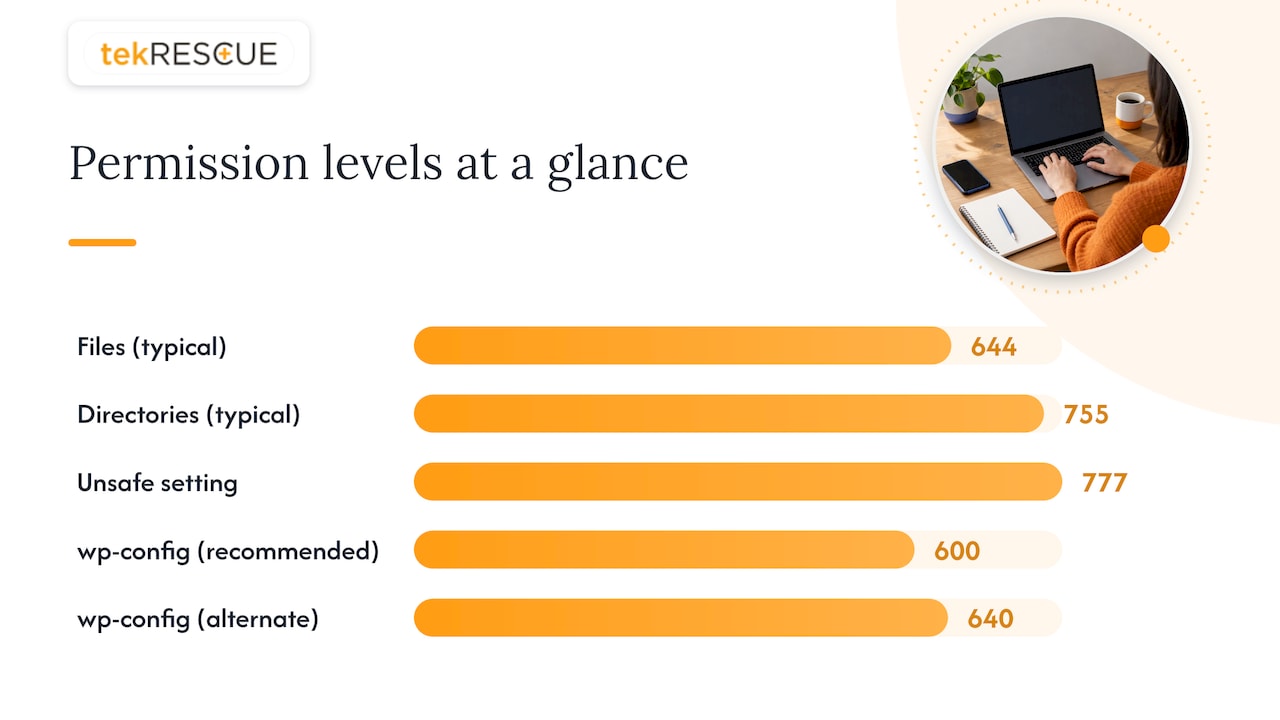
Your wp-config.php file holds database credentials and your site’s secret keys, making it one of the highest-value targets on the server. Where your hosting setup allows it, move this file one directory above the public web root. WordPress will still find it there automatically, and it becomes unreachable through direct web requests. At minimum, lock its permissions down to 600 or 640 so only the necessary accounts can read it.
Secret keys deserve particular attention after any suspected compromise. Rotating the authentication keys and salts in wp-config.php forces every active session to log out immediately, including any session an attacker may be holding. This is a fast, low-cost move that should happen the moment you suspect unauthorized access, not after you have finished investigating.
Two more settings close common gaps:
- Disable theme and plugin file editing in the dashboard. Adding
define('DISALLOW_FILE_EDIT', true);to wp-config.php removes the built-in code editor, which is one of the first things an attacker checks once they have admin access, since it lets them inject code without ever touching the file system directly. - Block PHP execution inside the uploads directory. A server rule that prevents PHP files from running in
/wp-content/uploads/stops a huge category of attacks that work by uploading a disguised PHP file through a form, then executing it directly.
Pro Tip: If you ever suspect a breach, rotate your secret keys and reset every admin password before you do anything else. Investigation can wait a few minutes; an active attacker session cannot.
None of these changes require touching WordPress core itself, and most take less than an hour combined. They are also the kind of detail that gets skipped under deadline pressure, which is exactly why they show up repeatedly in post-incident reviews.
Server and PHP Hardening Beyond WordPress Itself
WordPress sits on top of a server stack, and that stack needs its own hardening independent of anything you configure inside the dashboard.
Keeping PHP patched is the most consequential item here, and it belongs on a recurring schedule rather than a one-time fix. WordPress’s PHP documentation recommends testing compatibility and backing up before any version bump, which means a staging environment is not optional once you are managing production traffic. The same discipline applies to the web server software itself, whether that is Apache, Nginx, or a managed host’s underlying stack: outdated server packages carry their own known vulnerabilities separate from anything WordPress controls.
Security headers add a layer of defense that most WordPress sites skip entirely. A Content Security Policy header restricts which scripts and resources a browser will execute on your pages, which blunts cross-site scripting attacks even when a vulnerability slips through. X-Frame-Options prevents your site from being loaded inside a hidden iframe on someone else’s page, a technique used in clickjacking attacks. Both are a handful of lines in your server configuration, not a plugin install.
TLS configuration needs a second look beyond just “HTTPS is on.” Disable outdated protocol versions like TLS 1.0 and 1.1, and confirm your certificate renews automatically rather than silently lapsing.
A web application firewall filters malicious requests before they ever reach WordPress, catching SQL injection attempts, known exploit signatures, and bot traffic at the network edge. This is distinct from a security plugin running inside WordPress itself, and the two work well together rather than as substitutes for each other.
A few more server-level moves round this out:
- Disable any service you are not actively using, since every open port is a potential entry point.
- Use SFTP or SSH for file transfers instead of plain FTP, which sends credentials in the clear.
- Restrict server-level admin tools like phpMyAdmin to specific IP addresses rather than leaving them open to the internet.
- Review your hosting dashboard for exposed debug or staging URLs that were never meant to be public.
Our breakdown of network security best practices covers these perimeter controls in more depth if you are managing infrastructure beyond a single site.
Auditing Users and Restricting Access
Most WordPress breaches trace back to a credential somewhere, not a zero-day exploit. Tightening who has access, and to what, closes that gap directly.
- Remove the default “admin” username and any account nobody recognizes. Every unused login is a potential entry point that nobody is watching.
- Enforce role separation. Give writers Author or Editor roles, not Administrator, and reserve full admin access for the small handful of people who genuinely need it.
- Issue time-limited credentials to vendors and contractors. A developer who needed access for a two-week project should not still have standing admin rights six months later.
- Centralize login through SSO where your team size justifies it, so offboarding someone revokes access everywhere at once instead of requiring you to remember every system they touched.
- Restrict wp-admin by IP address or basic auth when your admin team works from stable locations, adding a layer that stops credential-stuffing attempts before they ever reach the WordPress login screen.
Log administrative access and review it on a schedule, not just when something looks wrong. A quarterly glance at who logged in and from where catches dormant accounts and unexpected access patterns long before they become an incident.
Pro Tip: Audit user roles the same day someone leaves your team or a contractor’s project ends, not during your next scheduled review. Access cleanup delayed is access cleanup skipped.
Choosing and Maintaining Plugins and Themes Safely
Every plugin you install is code you did not write, running with access to your database. Vetting that code before and after installation matters as much as any server setting.
Favor plugins with a recent update history, an active support forum, and a meaningful install count, which signals both ongoing maintenance and a community likely to notice problems quickly. A plugin last updated two years ago against the current WordPress version is a liability even if it still technically works.
Extension count itself is a risk factor. Every inactive plugin or theme sitting in your files is still code that can be exploited even while deactivated, since the files remain on the server. Remove anything you are not actively using rather than just switching it off.
Before pushing any plugin or theme update to your live site, run it on staging first. This catches both compatibility breaks and, occasionally, a security regression introduced by the update itself. A handful of security incidents start with a trusted plugin shipping a flawed update, not with malicious intent.
A few habits keep this manageable long term:
- Subscribe to security advisories for your core plugins so you hear about a disclosed vulnerability the same day it is published, not weeks later.
- Limit plugin permissions where the plugin offers granular settings, rather than accepting its broadest default access.
- Review your installed plugin list quarterly and ask whether each one still earns its place.
- Avoid nulled or pirated premium plugins entirely, since they are a common vector for pre-installed malware.
Securing File Uploads and User Input
Any form on your site that accepts a file upload is a potential path to remote code execution if it is not locked down properly. OWASP’s File Upload Cheat Sheet lays out a defense-in-depth approach that applies directly to WordPress sites running contact forms, membership plugins, or media-heavy features.
Start with an allowlist, not a blocklist, for acceptable file types. Rejecting known-bad extensions always lags behind attackers finding a new one; accepting only the specific types you actually need (images, PDFs, whatever your form legitimately requires) closes that gap by design. Validate the actual file signature, not just the extension a user claims, since renaming a malicious PHP file to end in .jpg defeats an extension check alone. Cap file sizes to something reasonable for your use case.
Storage location matters as much as validation. OWASP’s guidance recommends keeping uploaded files outside the web root or on separate storage entirely, with execute permissions stripped, so that even a file that slips past validation cannot run as code. Scanning uploads against malware signatures, and sandboxing or content-disarm-and-reconstruction tools where your stack supports them, adds another layer before a file ever reaches a user.
Data breach costs documented across the OWASP File Upload guidance often trace back to improperly validated upload functionality left exposed on production systems, underscoring why this single endpoint deserves dedicated attention rather than a default plugin configuration.
- Allowlist accepted file types and validate the actual file signature, not the extension.
- Store uploads outside the web root or on separate storage with execute permissions removed.
- Scan every upload and apply sandboxing or CDR tools where available.
- Require CSRF tokens and authenticated access on every upload endpoint.
Upload forms built into third-party plugins deserve the same scrutiny as your own custom code. A contact form plugin that accepts file attachments is a file upload endpoint, whether or not it advertises itself that way.
Monitoring, Scanning, and Responding to a Breach
Hardening reduces the odds of a breach. It does not eliminate them, which is why detection and response planning belong in the same conversation as prevention.
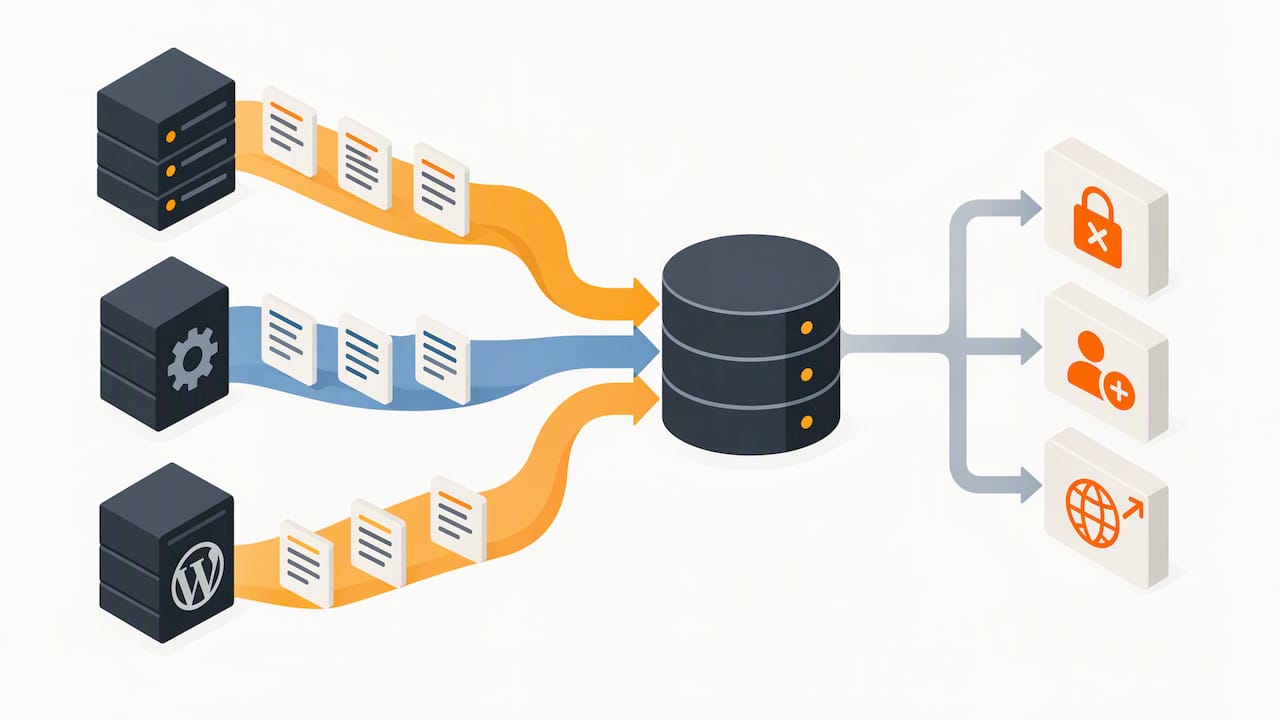
Centralize logs from your web server, PHP error logs, and any security plugin into one place you actually review, rather than letting each system keep its own records that nobody checks. Watching for anomalies like repeated failed logins from unfamiliar IP ranges, unexpected admin account creation, or spikes in outbound traffic catches an intrusion while it is still small.
Vulnerability scanning should run on a schedule, not just after something seems wrong. NIST’s server security guidance recommends regular scanning paired with prioritized patching based on what is actually exploitable, and an annual penetration test adds a human perspective that automated scans miss. Our guide to vulnerability assessments breaks down how to scope one of these for a small business budget.
When a compromise happens despite your defenses, work through these steps in order:
- Isolate the site by taking it offline or placing it in maintenance mode to stop active data loss or further spread.
- Rotate every credential and secret key, including database passwords, admin logins, and the WordPress authentication keys in wp-config.php, which immediately invalidates any session an attacker was using.
- Restore from your last verified-clean backup rather than trying to manually remove malicious code, since a thorough restore is faster and more reliable than hunting for every injected file.
- Bring in forensics support for anything involving customer data, payment information, or regulated records, both to understand scope and to meet any disclosure obligations.
Pro Tip: Run a tabletop exercise once a year where your team walks through “what do we do if the site is hacked right now” before it actually happens. Decisions made calmly in advance beat decisions made during an active incident.
Regular restore testing, covered earlier, is what makes step three actually work under pressure instead of becoming its own crisis.
Your 30 and 90-Day Hardening Checklist
Hardening works best as a sequence, not a single weekend project. Spreading these actions across immediate, 30-day, and 90-day windows keeps the workload realistic while still closing the highest-risk gaps first.
| Timeframe | Priority actions | What to measure |
|---|---|---|
| Immediate | Update core, plugins, and PHP; enable MFA on all admin accounts; verify last backup and restore it to staging; rotate secret keys if breach is suspected | MFA coverage across admin accounts; backup restore success |
| 30 days | Audit and remove unused plugins/themes; lock down file and directory permissions; enable a WAF; add security headers; review user roles | Percent of plugins actively maintained; permission audit completion |
| 90 days | Roll out centralized log monitoring; schedule recurring vulnerability scans; book an annual penetration test; run a tabletop incident response exercise | Scan cadence adherence; time-to-detect in tabletop results |
Assign an owner to each column, even if that owner is you alone managing a single site. A checklist with no accountability tends to stall at the immediate column indefinitely, which defeats the purpose of having a 90-day plan at all.
When In-House Hardening Hits Its Limit
Most of what we have covered, updates, MFA, backups, file permissions, can be implemented by a capable site owner with a few focused afternoons. Where this breaks down is sustaining it. Patch cadences slip, scan results sit unread, and nobody notices a plugin went unmaintained for a year until something exploits it.
That gap is where a managed services relationship earns its cost, particularly for businesses juggling compliance obligations like HIPAA alongside day-to-day operations. We built our cybersecurity services around exactly this pattern: continuous patch management, monitoring, and risk assessment rather than a one-time audit that goes stale the following month.
- Our services include ongoing patch management across core, plugins, and PHP so updates do not depend on someone remembering.
- Our services include continuous monitoring and log review, not just periodic checks.
- We provide incident response support when something does go wrong, including credential rotation and forensics coordination.
- We include controls for clients in regulated industries to assist with compliance requirements, including HIPAA and FTC Safeguards Rule.
If internal bandwidth, compliance pressure, or an uptime commitment to your own customers makes the checklist above feel like a second job, that is the point at which outsourcing the ongoing maintenance makes sense.
The Hardening Advice Nobody Wants to Hear
Most WordPress security content treats hardening as a list to clear once. It is not. We would argue the single most overrated piece of advice in this space is “install a security plugin and you are covered.” A security plugin is one layer, often a useful one, but it cannot patch a vulnerable theme for you, cannot force your host to update PHP, and cannot restore a backup that was never tested.
What gets underrated in return is backup restore testing. Everyone backs up. Far fewer confirm the restore actually works, and that is the control that determines whether a bad day becomes a two-hour recovery or a multi-week crisis. If you take one thing from this entire guide, make it that: test your restore before you need it, not during the incident.
Prioritize boring, repeatable discipline over any single tool. Updates on a schedule, MFA everywhere, permissions reviewed quarterly, that combination outperforms a stack of impressive-sounding plugins applied once and forgotten.
— Randy Bryan
Get Your Hardening Plan Implemented, Not Just Written Down
A checklist only protects you once it is actually running, which is the gap between reading this guide and having a hardened site. We map directly onto the plan above: our cybersecurity services cover the risk assessment, patch management, and monitoring layers, while our managed IT services handle the server-side hardening, backups, and hosting coordination that keep PHP and infrastructure current without you tracking it manually.
We offer an initial risk assessment that evaluates your current site against the checklist above and identifies areas needing attention. From there, ongoing patch management, monitoring, and compliance-related controls can be scoped as needed.
- Request a cybersecurity risk assessment through our cybersecurity services page
- Ask about ongoing patch and hosting management through managed IT services
- Reach out about breach recovery or forensics through our incident response team
If your site has already been compromised, start with incident response rather than the general assessment, since containment comes before the longer-term plan.
FAQ
Is WordPress outdated in 2026?
No, WordPress remains actively developed with regular core, security, and PHP compatibility updates. The platform’s security record depends far more on how well an individual site is maintained than on the software’s age.
Why are people moving away from WordPress?
Some site owners move to other platforms over perceived maintenance burden, plugin sprawl, or a preference for hosted, all-in-one builders with less configuration required. That tradeoff usually comes down to who manages updates and security, not a fundamental flaw in WordPress itself.
Does WordPress have security issues?
WordPress core itself is patched quickly when vulnerabilities are found, but most real-world compromises trace back to outdated plugins, themes, or weak credentials rather than core code. CISA’s hardening guidance for small organizations specifically targets these surrounding weaknesses rather than core WordPress.
How to protect WordPress from hackers?
Keep core, plugins, and PHP updated, require MFA on every admin account, and maintain tested, off-site backups as your first three controls. Layer in file permission hardening, a web application firewall, and restricted user access from there, following the priority order covered throughout this guide.
Do I need a security plugin if I follow this checklist?
A security plugin can add useful monitoring and firewall features, but it is one layer among many, not a substitute for updates, MFA, backups, and server-level hardening. Think of it as reinforcement for the foundational controls, not a replacement for them.
Sources
- Multifactor authentication | CISA
- WordPress
- Mitigations and hardening guidance for MSPs and small- and mid-sized businesses | CISA
- File Upload Cheat Sheet | OWASP
- WordPress
Recommended
Table of Contents