
2–4 Week DMARC Setup for SMB IT: Publish, Monitor, Enforce Safely
Confirm SPF and DKIM are passing first, then publish a monitoring DMARC TXT record with p=none and a rua address so you start collecting reports before you touch enforcement. That record tells receiving mail servers how to treat messages that fail authentication, and p=none means do nothing yet, just report. Once reports confirm every legitimate source is aligned, move the policy to p=quarantine and then p=reject.
TL;DR:
- Confirm SPF and DKIM are passing for all senders before publishing your DMARC record to avoid failures during enforcement.
- Start with a p=none policy and collect reports for at least two to four weeks to ensure all legitimate sources are aligned before moving to stricter policies.
- Use a simple spreadsheet to track each sender’s SPF, DKIM, and domain alignment to streamline troubleshooting and policy adjustments.
- Gradually increase enforcement through p=quarantine and p=reject, monitoring reports closely to prevent valid mail from being blocked.
- Regularly review aggregate reports for unknown IP addresses or misaligned sources, and address third-party sender issues before full enforcement.
Table of Contents
Table of Contents
- Inventory Your Senders and Validate SPF and DKIM Before You Touch DMARC
- Choose the DMARC Tags and Build Your TXT Record
- Add the _dmarc TXT Record to Your DNS
- Set Up Report Collection and Learn to Read the Data
- Move From p=none to p=reject Without Breaking Your Mail Flow
- Diagnose Alignment Failures and Third-Party Sender Problems
- Handle Parked Domains, Subdomains, and Vendors That Cannot Sign Your Mail
- Why Working With a Managed Provider Makes Sense for Many SMBs
- DMARC Is a Process, Not a Checkbox
- Get Help Rolling Out and Monitoring DMARC the Right Way
- FAQ
- Sources
Inventory Your Senders and Validate SPF and DKIM Before You Touch DMARC
DMARC fails loudly when you skip this step. Before you publish anything, you need a full list of everything that sends mail using your domain, not just your primary mail server.
Start by pulling together every system that touches your domain’s name in the From field. Most businesses are surprised by how many there are.
- Primary mail platform (Microsoft 365, Google Workspace, or an on-premises server)
- Marketing and transactional email tools (newsletter platforms, CRM systems, e-commerce receipt senders)
- Payroll, HR, and notification systems that email employees or customers
- Help desk, ticketing, and support software
- Any third-party vendor sending on your behalf, including invoicing or scheduling tools
For each one, send a test message to a mailbox you control and check the Authentication-Results header. You’re looking for which method, SPF or DKIM, actually passes, and whether the domain in that result lines up with your From address. That alignment check matters more than most admins expect: a message can pass SPF or DKIM individually and still fail DMARC if the aligned domain doesn’t match.
After you add or change any SPF or DKIM record, wait before testing. Google Workspace guidance recommends waiting at least 48 hours for SPF and DKIM changes to propagate before you enable DMARC. Rushing this step is the single most common reason admins see legitimate mail flagged once enforcement begins.
Pro Tip: Keep a simple spreadsheet of every sending source, its SPF mechanism, and its DKIM selector. You will reference it constantly during rollout.
Choose the DMARC Tags and Build Your TXT Record
A DMARC record is a single line of text, but every tag inside it changes behavior. RFC 7489 defines the syntax, and only two tags are required: v (the version, always DMARC1) and p (the policy: none, quarantine, or reject).
Beyond those, a handful of optional tags do the real work:
- pct: the percentage of failing mail the policy applies to, useful for phased enforcement
- rua: the mailto address where aggregate reports are sent
- ruf: the mailto address for forensic reports on individual failures
- aspf and adkim: alignment mode, either relaxed ® or strict (s), for SPF and DKIM respectively
A monitoring record looks like this:
v=DMARC1; p=none; rua=mailto:dmarc-reports@yourdomain.com
A later enforcement record might read:
v=DMARC1; p=reject; rua=mailto:dmarc-reports@yourdomain.com; adkim=s; aspf=r
Every mailto entry in rua or ruf needs the full “mailto:” prefix, and multiple addresses are separated with a comma, never a space.
BOD 18-01 guidance from CISA recommends starting with p=none specifically to collect reports before any enforcement decision is made, then moving to quarantine and reject only once authorized sources are confirmed.
Add the _dmarc TXT Record to Your DNS
Once you have your record string, publishing it is mechanical. Every DNS provider uses slightly different field labels, but the inputs are the same everywhere.
- Log into your DNS host or registrar’s control panel.
- Create a new TXT record with the host or name field set to
_dmarc(not_dmarc.yourdomain.com, most providers append the domain automatically). - Paste your full DMARC string into the value or content field.
- Set the TTL to a standard duration so future changes propagate quickly during testing.
- Save and allow time for propagation, typically a few hours depending on your provider’s caching.
Microsoft Learn’s DMARC documentation walks through this same process for Microsoft 365 domains and stresses confirming SPF and DKIM are already active before this step, not after.
After publishing, validate the record before you assume it’s live:
- Use a DNS lookup tool to query
_dmarc.yourdomain.comas a TXT record and confirm the string matches what you entered. - Check that only one DMARC TXT record exists for the domain. Two conflicting records will cause receivers to ignore both.
- Send a fresh test message and review the Authentication-Results header for a
dmarc=passresult.
A monitoring-stage record stays simple: v=DMARC1; p=none; rua=mailto:dmarc-reports@yourdomain.com. An enforcement-stage record for a domain that’s confirmed clean reports might read: v=DMARC1; p=reject; rua=mailto:dmarc-reports@yourdomain.com. If you’re staging a subdomain test ahead of the main domain, you can use a policy such as v=DMARC1; p=quarantine; rua=mailto:dmarc-reports@yourdomain.com to test enforcement gradually.
Set Up Report Collection and Learn to Read the Data
DMARC gives you two kinds of reports, and they tell you very different things. Aggregate reports (rua) arrive daily as XML files summarizing which IP addresses sent mail claiming your domain, and whether each passed or failed SPF and DKIM alignment. Forensic reports (ruf) are rarer now, since many providers have stopped sending them over privacy concerns, but when available they include details on individual failed messages.
Reading raw XML by hand gets old fast. Two practical options exist:
- Open-source parsing: parsedmarc ingests aggregate and forensic reports and can feed them into Elasticsearch and Kibana for visualization, a common setup for IT teams who want control over their own data.
- Managed SaaS platforms: several vendors parse and visualize reports for you, trading setup time for a subscription cost.
Whichever you choose, dedicate a mailbox to receiving reports rather than mixing them into a shared inbox. Volume adds up quickly once multiple receivers start reporting daily, and a cluttered inbox makes it easy to miss a new unauthorized sender. A checklist for building compliant email lists is also worth reviewing if your reporting mailbox will touch any personal data, since aggregate reports do include sending IP addresses tied to real traffic.
When you open a report, look first at any source IP you don’t recognize. That’s either a legitimate sender you missed in your inventory or, worse, someone spoofing your domain.
Pro Tip: Set a recurring calendar reminder to review aggregate reports weekly during the first month after publishing. Missed senders show up fast, and catching them early keeps your rollout on schedule.
Move From p=none to p=reject Without Breaking Your Mail Flow
Enforcement is the whole point of DMARC, but jumping straight to p=reject is how legitimate mail gets silently dropped. A staged rollout protects you from that.
- Spend two to four weeks at p=none while reviewing aggregate reports and confirming every sending source is accounted for. High-volume domains with many third-party senders may need longer.
- Move to p=quarantine with a low pct value, such as 10 or 25, so only a fraction of failing mail is affected while you watch for unexpected impact.
- Increase pct gradually over several weeks as reports stay clean, working toward pct=100 at quarantine.
- Shift to p=reject, again starting at a reduced pct if your volume or sender complexity is high, then raise it to full enforcement once confirmed.
CISA’s BOD 18-01 describes this exact pattern: phased enforcement using pct, with aggregate reports as the gate for each step forward. If you manage multiple domains, test the rollout on a lower-risk subdomain first, something like a marketing or notifications subdomain rather than your primary corporate domain, and save the root domain for last once your process is proven.
Diagnose Alignment Failures and Third-Party Sender Problems
When a report shows failures, work through the same sequence every time rather than guessing.
- Check SPF first: does the sending IP appear in your SPF record, and is the record under the 10-lookup limit?
- Check DKIM next: is the message actually signed, and does the signing domain match what you expect?
- Check alignment: even when SPF or DKIM passes individually, does the aligned domain match the From header?
- Check the aggregate report entry itself for the exact failure reason reported by the receiving server.
Microsoft’s own troubleshooting documentation points to misaligned domains as the most common operational mistake: a message passes SPF or DKIM technically, but the signing or sending domain doesn’t match the visible From address, so DMARC still fails.
For Exchange Online environments, PowerShell’s Get-MessageTrace and header inspection tools can confirm exactly which authentication method ran on a given message.
Common fixes depend on the root cause:
A vendor that cannot sign mail with your domain should either be added to your SPF record by IP, or moved to send from a dedicated subdomain with its own DMARC policy.
Forwarding is a separate problem entirely. When a message gets forwarded through another mail system, SPF almost always breaks because the forwarding server isn’t in your SPF record. ARC (Authenticated Received Chain) headers help receivers trust a forwarded message’s original authentication, though support varies by receiving provider.
Handle Parked Domains, Subdomains, and Vendors That Cannot Sign Your Mail
Not every domain you own sends mail, and those domains need attention too. A parked domain that never sends email is a favorite target for phishing because nobody’s watching it.
- Parked or non-sending domains should go straight to p=reject with no mail flow to break. There’s no legitimate traffic to protect, only abuse to block.
- Subdomains inherit the parent domain’s DMARC policy by default, but any subdomain with different senders, like a marketing or support subdomain, benefits from its own explicit record so you can tune its policy independently.
- Vendors that cannot DKIM-sign using your domain are best handled one of two ways: add their sending infrastructure to your SPF record, or hand them a dedicated subdomain they can authenticate under without touching your primary domain’s reputation.
Marketing platforms are the most frequent offenders here. If your team runs email campaigns through a third-party tool, loop in whoever manages email campaign content and headers before you move that sender’s domain to enforcement.
Why Working With a Managed Provider Makes Sense for Many SMBs
DMARC rollout is a project with real risk: get it wrong and customer invoices or payroll notices start bouncing. A managed provider can help businesses handle this kind of risk by pairing cybersecurity services with compliance work for clients who cannot afford a misconfigured enforcement policy. If your team lacks the bandwidth to review weekly aggregate reports or your domain sends through several third-party platforms, a managed provider’s ongoing monitoring closes that gap. A cybersecurity risk assessment checklist is a useful starting point for scoping the work before you bring in outside help.
DMARC Is a Process, Not a Checkbox
Most domain owners treat DMARC as a one-time DNS entry and move on. That’s the mistake. New senders get added, vendors change their sending infrastructure, and a policy that was safe in January can start blocking legitimate mail by summer. CISA’s own guidance frames reject as the end goal once sources are confirmed, not a settings toggle you flip and forget. Treat report review as a recurring task, the same way you’d treat patching or backup verification, or the protection quietly erodes.
— Randy Bryan
Get Help Rolling Out and Monitoring DMARC the Right Way
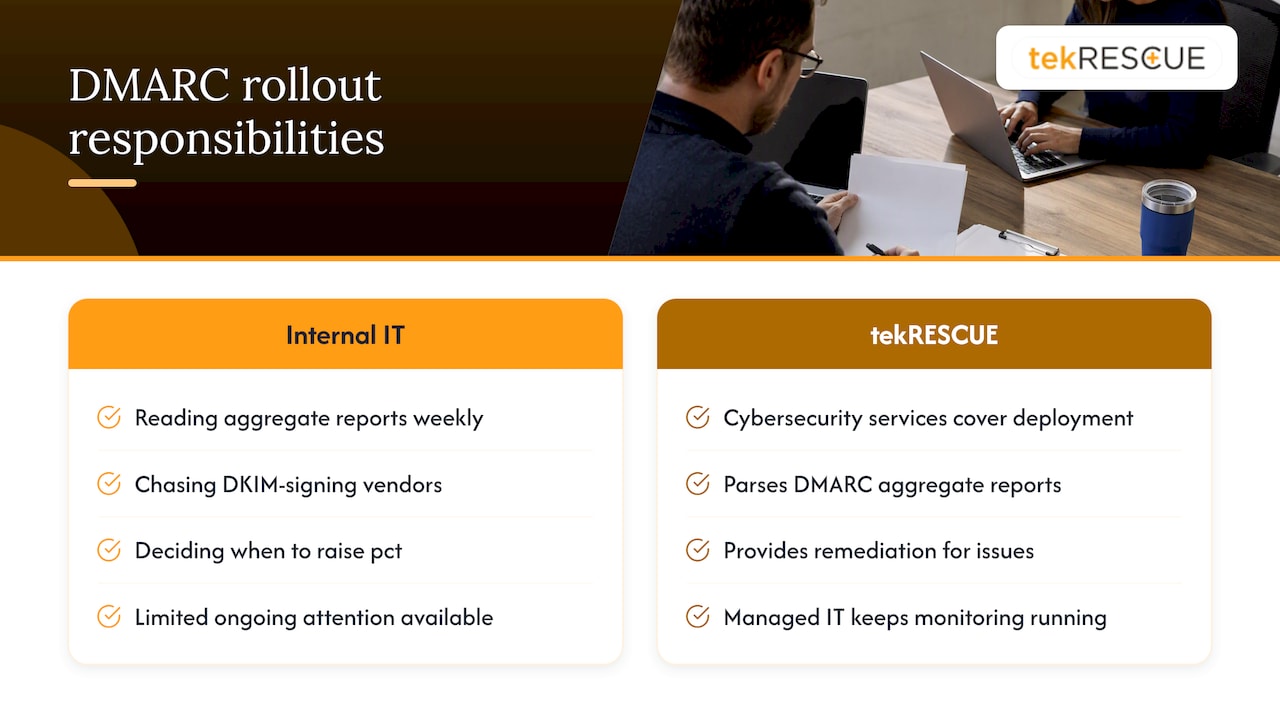
Reading aggregate reports every week, chasing down a vendor that will not DKIM-sign correctly, and deciding when it’s safe to raise pct takes ongoing attention most internal IT teams do not have time for. tekRESCUE’s cybersecurity services cover DMARC deployment, report parsing, and remediation as part of a broader security engagement, and our managed IT services keep the monitoring running after the initial rollout is done. If your business handles sensitive data under HIPAA or the FTC Safeguards Rule, getting email authentication right is part of that compliance picture, not separate from it. Reach out through our cybersecurity page to talk through where your domain stands today.
FAQ
Do I need to set up DMARC?
Any domain that sends email benefits from DMARC, since it stops attackers from spoofing your domain in phishing campaigns that target your customers or employees. CISA treats it as a baseline email security control alongside SPF and DKIM, not an optional extra.
What are the recommended settings for DMARC?
Start with p=none and a rua address so you collect aggregate reports without affecting mail delivery, then move to p=quarantine and finally p=reject once reports confirm all legitimate senders are aligned. CISA’s BOD 18-01 recommends this staged approach, using the pct tag to limit enforcement while testing.
What does DMARC stand for?
DMARC stands for Domain-based Message Authentication, Reporting, and Conformance. It builds on SPF and DKIM to validate sender identity and tells receiving mail servers how to handle messages that fail that validation.
Is DMARC mandatory now?
DMARC itself is not a law, but several major mailbox providers now require it for bulk senders, and compliance frameworks increasingly expect it as a standard email security control. Businesses handling regulated data, such as those covered by HIPAA, treat it as a practical requirement for protecting email channels even where no specific statute names it.
Sources
RFC 7489, CISA’s BOD 18-01, Microsoft Learn, and Google Workspace support cover the full setup and troubleshooting path.
- BOD 18-01: Enhance Email and Web Security (CISA)
- Set up DMARC to validate email in Microsoft 365 (Microsoft Learn)
- Troubleshoot DMARC issues | Google Workspace Help
- RFC 7489 – DMARC
Recommended
Table of Contents