
Privacy First Website Analytics Setup for Small Sites: GA4, HIPAA Aware
Here is the one move that matters: create a GA4 property, add a web data stream, install the Google tag so it fires on your pages, then configure and mark one conversion event, like a contact form submit, and confirm it fires correctly in DebugView. Everything else in this guide exists to help you do that reliably and without creating a privacy problem you did not see coming.
TL;DR:
- Keep separate sites under one business in separate properties, and set the time zone and currency correctly because later changes cannot repair historical data.
- Choose Google Tag Manager for tracking beyond pageviews, and reserve publishing rights for one person while giving routine tag edits to an editor.
- Use GA4’s recommended events when they fit, mark reliably firing events as conversions, and add monetary values to purchases or estimated lead values.
- Consent Mode v2 may model declined cookie activity only above Google’s data thresholds, so initialize consent before tags fire and audit URLs for sensitive data.
- Test page views and conversions in DebugView across consent states and devices, then allow 24 to 48 hours of live traffic before assessing results.
Table of Contents
Table of Contents
- Create Your Google Analytics (GA4) Account, Property, and Web Data Stream
- Install the Tracking Tag: CMS Field, Manual Tag, or Google Tag Manager
- Configure Events and Conversions in GA4
- Consent, Privacy, and Compliance: What Changes Before You Flip the Switch
- Verify and Debug: DebugView, GTM Preview, and a Short QA Checklist
- Reporting Basics and the First KPIs to Watch
- tekRESCUE Perspective: When to Hire Help
- How tekRESCUE Can Help With Analytics Setup
- FAQ
- Sources
- Primary Documentation and Authoritative Resources
Create Your Google Analytics (GA4) Account, Property, and Web Data Stream
Before you touch a line of code, you need to decide how your Google Analytics account is structured. According to Google’s own setup documentation, you create an account, then a property inside it, then a data stream inside the property. Get this hierarchy wrong and you end up with fragmented data across businesses or sites that should have been kept separate.
A few decisions matter from the start:
- Create a new account only when you are tracking a separate business; use a new property within an existing account for a separate site under the same business.
- Set your reporting time zone and currency correctly the first time. Changing these later does not retroactively fix historical data.
- Pick a business category and size during setup. GA4 uses this to surface relevant default reports instead of a blank dashboard.
- Add a web data stream to your property and turn on Enhanced Measurement, which auto-captures scrolls, outbound clicks, and file downloads without extra code.
- Leave Google Signals off at first unless you specifically need cross-device reporting and are ready to handle the consent implications that come with it.
Enhanced Measurement is the fastest way to get usable data flowing without writing custom event code. It is not a substitute for tracking your actual business goal, but it buys you real visibility on day one while you build out conversions properly.
Install the Tracking Tag: CMS Field, Manual Tag, or Google Tag Manager
Once your data stream exists, you need the Google tag firing on every page. You have three paths, and which one fits depends entirely on your platform and how much control you want over events later.
- Use your CMS’s built-in Analytics field when one exists. WordPress and Shopify both offer a dedicated spot to paste your measurement ID, often through a plugin like Insert Headers and Footers, and this is the lowest-friction option for a simple site.
- Paste the Google tag snippet manually into your site’s HTML, right before the closing head tag, when your CMS has no dedicated field. This works but means every template change risks breaking tracking.
- Install Google Tag Manager once, then manage every tag, including GA4, inside GTM going forward. This is the path we recommend for anyone planning to track more than pageviews.
GTM earns its reputation because it decouples tag management from your codebase and gives you a clean place to wire up consent logic later. A basic GTM install checklist looks like this: add the container snippet to every page, create a GA4 Configuration tag, set it to fire on All Pages, then publish and verify.
Pro Tip: Give GTM Editor access to whoever manages tags day to day, but reserve Administrator/Publish rights for one person so changes go live only after a second look.
Configure Events and Conversions in GA4
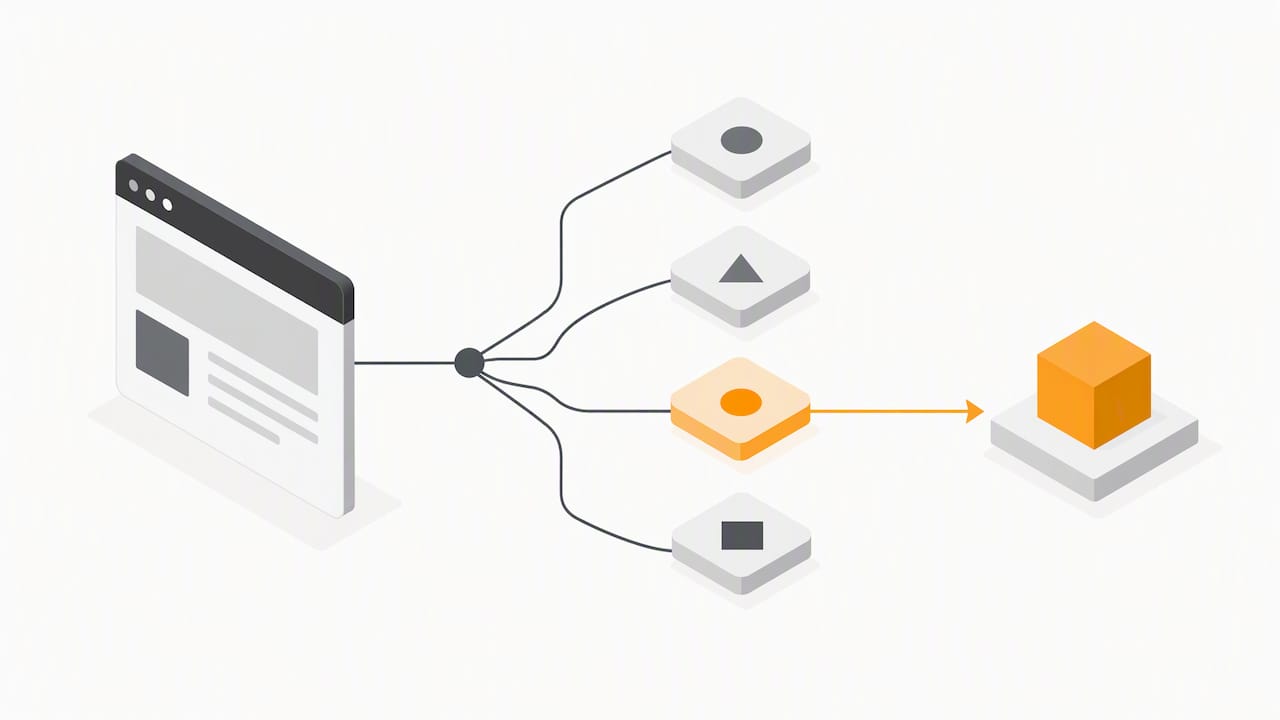
GA4 does not use the old Universal Analytics goal model. Every interaction is an event, and some events get flagged as conversions, which is a meaningful shift if you are used to the older system.
Start with recommended events before building custom ones. GA4 already defines standard events like purchase and generate_lead with the right parameters built in, so use those whenever your action matches. Build a custom event only when nothing standard fits, such as a specific calculator interaction or a multi-step quote tool.
- In the GA4 interface, go to Admin, then Events, and use “Create event” to build an event from existing parameters without touching code.
- In GTM, send events using a GA4 Event tag tied to a trigger, such as a form submission or button click.
- Mark the event as a conversion with one toggle in Admin, under Events, once it reliably fires.
- Add a value parameter to ecommerce purchases or estimated lead value so conversions carry a dollar figure, not just a count.
Pro Tip: Build one conversion event first, verify it in DebugView, and only then add a second. Chasing five events at once is how half of them end up broken silently.
Consent, Privacy, and Compliance: What Changes Before You Flip the Switch
Consent mode is not optional anymore if you run ads or operate where privacy law requires a choice. According to Google’s consent settings documentation, Consent Mode v2 lets you collect consent signals and, when your property meets certain data thresholds, use behavioral modeling to estimate activity from users who decline cookies.
This changes what your reports actually mean. A visitor who denies consent is not invisible, but their data may be partially modeled rather than directly observed, and the modeling has real limits.
- Implement a Google-certified Consent Management Platform or wire up Consent Mode v2 directly if you are comfortable with GTM’s consent triggers.
- Sequence your tags so the Consent Initialization trigger fires before any tag that reads cookies, otherwise you risk firing tags before a user has made a choice.
- If you are a HIPAA-regulated entity, know that the HHS guidance on online tracking is explicit: tracking pixels and analytics tags must not impermissibly disclose protected health information to third parties, and expected security practices include TLS in transit and encrypted storage.
- Audit every form field and URL parameter for PII or PHI before it ever reaches an analytics vendor; a patient portal login page that leaks an appointment type in the URL is a disclosure, not a convenience.
The FTC and HHS Office for Civil Rights jointly warned businesses that third-party trackers can impermissibly disclose sensitive health information and urged companies to audit their own data flows. That liability sits with you, not your developer or your analytics vendor, so document what each vendor touches and review it periodically. If you operate a healthcare site, our guide to building an audit-ready HIPAA-compliant website walks through the practical checks in more detail.
Verify and Debug: DebugView, GTM Preview, and a Short QA Checklist
Do not trust a setup you have not watched work. GA4’s DebugView and GTM’s preview mode both let you see events fire in real time, which is the only reliable way to catch a broken tag before it costs you weeks of bad data.
- Open DebugView and confirm
page_viewfires on load, then click through to your conversion action and confirm the event appears and is correctly marked as a conversion. - Toggle consent to both granted and denied states and confirm behavior changes as expected, with modeled data appearing only where your property meets eligibility.
- Scan the event payload for anything that looks like an email address, name, or health detail, and remove it from the data layer if you find it.
- Repeat the check on a second browser and a phone, since mobile consent banners sometimes behave differently than desktop.
Pro Tip: Give it 24 to 48 hours of live traffic before judging your numbers. Early discrepancies are often just DebugView sessions mixed into real data, not a broken setup.
Reporting Basics and the First KPIs to Watch
Once events are firing cleanly, resist the urge to build ten dashboards. Start with five numbers: users, sessions, your conversion event count, conversion rate, and top traffic sources. These tell you whether people are arriving, what they are doing, and which channel deserves more budget.
- Check channel distribution weekly for anything unusual, like a sudden spike in direct traffic that is really a misconfigured tag double counting.
- Review top landing pages against your conversion event to spot pages that get traffic but never convert.
- Once your core events are stable, build a simple Exploration or funnel to see where users drop off between landing and conversion.
- If you are using consent mode or behavioral modeling, give your property a 30-day window before comparing month-over-month trends, since modeled data needs volume to stabilize.
tekRESCUE Perspective: When to Hire Help
A straightforward brochure site can usually run GA4 setup in an afternoon. The calculation changes once regulated data, multiple domains, ecommerce, or a thin internal team enter the picture.
We bring in outside help ourselves when the stakes involve compliance exposure or measurement complexity that a DIY install cannot absorb safely. A typical engagement includes an analytics inventory of every tag already on the site, a secure tag implementation through GTM, a documented event map tied to real business outcomes, consent integration that matches the applicable legal risk, and a QA pass before anything goes live. If you want the fundamentals first, our beginner’s guide to Google Analytics and our breakdown of AI traffic showing up in GA4 are good next reads.
— Randy Bryan
How tekRESCUE Can Help With Analytics Setup
If you would rather hand this off than spend a weekend in GTM’s trigger settings, that is exactly the kind of work we do. A managed setup through us typically covers secure tag installation, an event map built around your actual conversions, consent integration suited to your risk profile, and a QA pass in DebugView before we call it done.
- We install and verify your GA4 property, data stream, and tag configuration so it works on day one.
- We build your event and conversion map around real business outcomes, not generic templates.
- We integrate consent handling so your data collection matches your legal exposure, particularly if you handle health or financial information.
- We hand off documentation so your team understands what is tracked and why.
If compliance is part of the picture, our cybersecurity services team can pair a data-flow review with the analytics build. Otherwise, our website design and development team can handle the full install alongside any site changes you already have planned. Reach out and we will scope the work honestly, including a realistic timeline, before anything moves forward.
FAQ
What is the best website analytics tool?
Google Analytics 4 is the most widely used option for small and midsize sites because it is free, integrates with Search Console and Google Ads, and has extensive official setup documentation. Other tools exist for specific needs like privacy-first analytics, but GA4 remains the default starting point for most businesses.
What are the top three website KPIs you should track regularly?
Users and sessions show whether traffic is arriving at all, conversion events and conversion rate show whether that traffic does anything valuable, and top traffic sources show which channels deserve more investment. Watching these together, rather than any single number alone, is what turns raw traffic data into a decision you can act on.
Is Google Analytics free?
Yes, Google Analytics 4 is free to set up and use for standard websites, including Enhanced Measurement and event tracking, according to Google’s own setup guide. A paid tier exists for enterprise-scale data needs, but it is not required for typical small business use.
Which tool is used for website analytics setup and tag management?
Most sites use Google Analytics 4 for measurement and Google Tag Manager for deploying and managing the tags that send data to it. Using both together, rather than pasting tags directly into site code, makes it far easier to add new events and consent rules later without a developer each time.
Do I need a consent banner to use GA4 legally?
Whether you need a consent banner depends on your audience’s location and applicable privacy law, but Google’s Consent Mode v2 guidance explains how to collect consent signals and still recover some insight through behavioral modeling. If you collect health or other sensitive information, review the FTC and HHS guidance on third-party trackers before finalizing your approach.
Sources
- Guidance on HIPAA and online tracking – HHS
- Model Letter: Use of Online Tracking Technologies (FTC & OCR)
- Set up Analytics for a website and/or app – Analytics Help
Primary Documentation and Authoritative Resources
The steps in this guide follow Google’s own setup instructions, its consent and Consent Mode documentation, and federal guidance on tracking technologies from HHS and the FTC. We link each one below so you can verify the details yourself or dig deeper into a specific requirement that applies to your business.
Recommended
Table of Contents