
Website CRM Integration: How to Connect Your Site and CRM
Website CRM integration means your site and your customer database share data automatically. A form submission becomes a contact record, a page view lands on that contact’s timeline, and nobody retypes anything. You can do it with a vendor plugin, a no-code automation tool, or a direct API connection. The right choice depends on how much control you need and how sensitive your data is.
If you run a small business, here is the uncomfortable truth: the connection between your website and your CRM is a data pipeline, and every pipeline is an attack surface. Build it for speed alone and you may end up with duplicate records, broken forms and customer data flowing places you never approved. This guide covers how it works, how to choose a method, how to test it, and how to protect what moves through it.
Table of Contents
TL;DR
- A website CRM integration sends form entries, purchases and support interactions into one customer record so staff stop entering data by hand.
- Three main methods exist: native plugins from the CRM vendor, no-code automation tools such as Zapier or Make, and direct API connections for custom needs.
- Integration is infrastructure, not a one-time setup. APIs change, platforms update, and data quality needs ongoing attention.
- If you are a healthcare provider, form data can be protected health information (PHI). That changes which vendors you can use and what agreements you need before you connect anything.
- Test the full data flow before launch, then monitor it afterward.
Table of Contents
- What a CRM for a website actually does
- Three ways to connect a website to a CRM
- Data can flow both ways
- How to plan the integration
- What goes wrong, and how to head it off
- A testing checklist before launch
- Protecting customer data in the pipeline
- Perspective: the connection is the weak link
- Where tekRESCUE fits
- Choosing your approach
- FAQ
- Sources
What a CRM for a website actually does
A CRM is a platform that stores customer data, tracks interactions and manages sales processes. TechTarget describes typical features as contact management, sales and marketing automation and customer analytics. Your website is where many of those contacts first show up: a quote request, a newsletter signup, a booking form, a chat message.
Without a connection, someone has to copy those entries from an inbox into the CRM. That is slow, and entries get missed. With a connection, a website integration can send form submissions, purchase history and support interactions into a single record and remove the manual entry.
The practical payoff is a fuller picture of each person. HubSpot says a website-connected CRM can sync forms to a contact database and keep a unified timeline of page views, live-chat conversations and form submissions. TechTarget adds that this comprehensive view of interactions and preferences helps sales teams tailor what they do next.
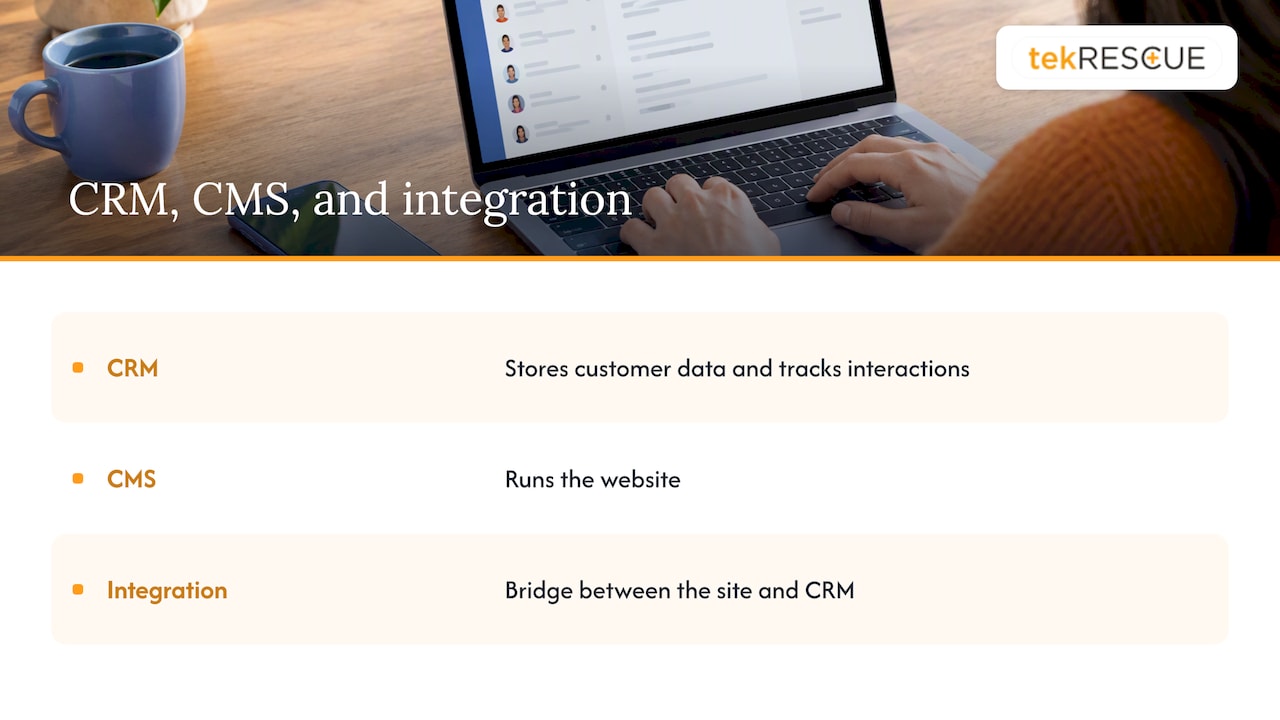
A note on terms, because the search results mix them up. A CRM is not a CMS. Your content management system runs the site. The CRM runs the relationships. Integration is the bridge between them.
Three ways to connect a website to a CRM
Every method moves the same thing: data from a visitor action to a CRM record. They differ in cost, flexibility and how much can go wrong. Brevo’s documentation, for example, lists sign-up forms, website plugins, platform integrations, Zapier or Make automations and API-based custom integrations as ways to connect a site. Other guides sort them into native plugins, no-code automation platforms and direct API connections.
| Method | Best for | Strengths | Watch out for |
|---|---|---|---|
| Native plugin or embedded form from the CRM vendor | A standard site that needs forms feeding contacts | Fast to set up, vendor-supported | Limited customization, tied to one CRM |
| No-code automation (Zapier, Make) | Connecting several tools with simple rules | No developer needed, flexible triggers | Another vendor in the data path, task limits, silent failures |
| Direct API connection | Custom fields, custom workflows, sensitive data | Full control over what is sent and how | Needs development and ongoing maintenance |
Native plugins and embedded forms
This is the starting point for most small sites. You install the CRM’s plugin or paste its form embed, and submissions arrive as contacts. It works well when your needs are ordinary: a contact form, a newsletter signup, basic tracking.
The tradeoff is control. You get the fields and behaviors the vendor built. If your sales process needs routing by service area, or you need to keep certain fields out of the CRM entirely, a plugin may not bend that far.
No-code automation platforms
Automation tools sit in the middle. A form submission triggers a “zap” or a scenario that creates or updates a CRM record, posts to a chat channel, and sends an email. They are popular on custom or older sites, including the PHP sites that readers ask about, where no ready-made plugin exists.
Two cautions. First, you have added a third party that now touches every lead. Know what data passes through it. Second, these automations fail quietly. A changed field name or an expired connection can stop leads from flowing for days before anyone notices. Set up failure alerts.
Direct API connections
Salesforce explains that an API lets two applications talk to each other, and that integration platforms can offer prebuilt connectors. A direct API integration means your site’s code sends data straight to the CRM.
That gives you precision. Modern CRM APIs, including HubSpot’s, support authenticated submissions that let developers include context such as IP address and page URI alongside the form fields. You decide what is sent, what is stripped, and what happens when something fails.
Salesforce also warns about the shortcut version of this. Quick code can create a messy web that breaks with updates, while a proper API approach can accommodate current and future applications. Whoever writes the integration should document it like any other part of your infrastructure.
Data can flow both ways
Most people picture one direction: site to CRM. Integration can also run the other way. Webhooks let a CRM notify a website or another service when something happens, such as a contact property changing or a new record being created.
Here is what that enables in practice:
- A deal closes in the CRM and your site unlocks a client portal.
- A contact’s status changes and your site stops showing them a promotional banner.
- A new lead is created and your team gets an instant notification.
Two-way flow is powerful, and it doubles the number of places data can go wrong. Decide which system is the source of truth for each field before you connect anything.
How to plan the integration
TechTarget recommends a sequence that holds up well for small businesses: identify shared data and integration points, select APIs, middleware or custom integration, plan roles and risks, test, then monitor and optimize. Here is how that looks in practice.
- Map what moves. List every form and interaction on the site: contact, quote, booking, checkout, chat, newsletter. For each, write down which CRM fields it should fill.
- Classify the data. Mark which fields are ordinary contact details and which are sensitive, such as health details, financial information or account numbers. Sensitive fields may need to stay out of the CRM or go only through approved, protected channels.
- Pick the method. Use a plugin for the simple forms. Use automation for light multi-tool workflows. Use an API when you need control over fields, validation or security.
- Assign owners. Someone owns the CRM, someone owns the site, and someone owns the connection. If nobody owns the connection, it will break and stay broken.
- Clean before you connect. If you are importing existing contacts, fix duplicates and bad records first. Connecting a messy database to a live form only spreads the mess faster.
- Test, launch, then monitor. More on this below.
What goes wrong, and how to head it off
The honest list of problems is short and predictable. Shopify’s integration guide names unclean migrated data, duplicate records, user resistance and continuing maintenance as the common ones, and describes integration as infrastructure that needs upkeep because APIs evolve and platforms update.
Here is how to address each one.
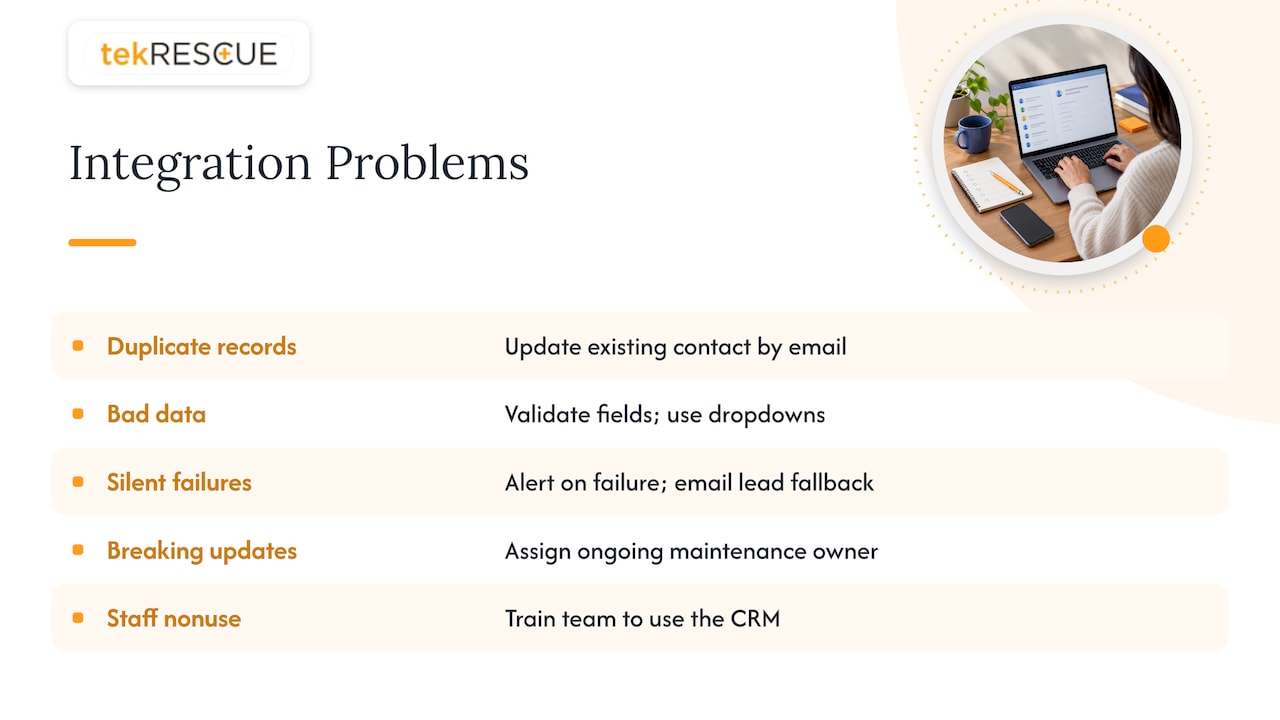
Duplicate records. Decide the matching rule up front, usually email address. Configure the integration to update an existing contact instead of creating a new one.
Bad data in. Validate fields on the form itself. Required email format, dropdowns instead of free text for service type, and spam protection all keep junk out of the CRM.
Silent failures. Send an alert when a submission fails to reach the CRM, and keep a fallback so the lead is still emailed to a real person. A lead that vanishes is a lost sale you never knew about.
Updates that break things. Website updates, plugin updates and CRM changes can each break a connection. This is the strongest argument for having someone responsible for your site’s ongoing maintenance, not just its launch. Our website maintenance and management work exists for exactly this reason.
Staff who do not use it. A CRM full of perfect website leads is useless if the team keeps working from personal spreadsheets. Train people on the one place leads now live.
A testing checklist before launch
TechTarget’s advice is to test data flow and accuracy, then keep monitoring and optimizing after launch. Use test data and walk through each item:
- Submit every form on the site and confirm each creates the right record with every field in the right place.
- Submit the same email twice and confirm it updates the contact rather than creating a duplicate.
- Submit with a missing or malformed field and confirm the form rejects it.
- Break the connection on purpose, for example by pausing the automation, and confirm you get an alert and the lead is still delivered another way.
- Check mobile submissions, not just desktop.
- Confirm that fields you meant to keep out of the CRM really are absent from the record.
- Confirm the right person is notified, and that follow-up emails or tasks trigger as designed.
After launch, review the connection on a regular schedule. Compare form submissions on the site against new CRM records. If the counts drift apart, something is leaking.
Protecting customer data in the pipeline
Every integration copies customer data into another system. That means every vendor in the chain is part of your security posture. Ask, for each tool: where is the data stored, who can see it, is it encrypted, and what happens if the vendor is breached?
This is not abstract. The FTC’s order against BetterHelp requires the company to maintain a comprehensive privacy program protecting covered information and bars it from misrepresenting its privacy and security practices. If your site tells visitors their information is private, your integrations have to match that promise.
Basic hygiene for any business:
- Use unique, strong credentials for each connection, and store API keys outside your public site code.
- Give each integration only the permissions it needs.
- Remove connections you no longer use, and revoke access when staff or vendors leave.
- Keep your CRM plugins and site software patched.
- Understand what cookies and tracking scripts on your site send, and to whom. Our explainer on cookies and cache is a good starting point.
- Have a plan for when something goes wrong. A HIPAA incident response plan is built for healthcare providers, but the first-hours discipline applies to any business that holds customer data.
If you handle health information
Healthcare providers need to slow down here. A web form on a medical, dental or therapy practice site can collect PHI the moment someone describes a symptom, an appointment reason or a provider. Sending that into a general-purpose CRM, or through an automation tool, can create a HIPAA problem.
HHS guidance says that covered entities must enter into a Business Associate Agreement with tracking technology vendors that qualify as business associates and handle PHI on their behalf. The same guidance clarifies that a cookie banner asking visitors to accept cookies is not a valid HIPAA authorization for disclosing PHI to third-party tracking vendors.
In practical terms:
- Before any vendor receives form data that could include PHI, confirm whether it will sign a BAA. Our guide on what a Business Associate Agreement must cover lists what to look for.
- Keep PHI out of fields and tools that are not covered by an agreement. A contact form can ask for name, phone and a preferred time without asking for medical details.
- Encrypt data in transit and at rest. See our walkthrough of PHI encryption for small practices.
- Review analytics and tracking scripts the same way. Our privacy-first analytics setup covers a HIPAA-aware approach.
- If email notifications carry form contents, check that too. See HIPAA compliant email.
- Build the whole site on a compliant foundation. Our three-phase approach to a HIPAA compliant website shows how the pieces fit.
The risk of getting this wrong is real. Our overview of the HIPAA Security Rule and OCR penalties explains why enforcement matters for small practices. If you are unsure whether a given form or integration touches PHI, ask a compliance professional before you launch it, not after.
Perspective: the connection is the weak link
We see the same pattern with small businesses again and again. The website gets attention at launch, the CRM gets attention at purchase, and the connection between them gets attention never. Then a form silently stops delivering leads, or a plugin update exposes a field that should have stayed private, and the owner finds out weeks later.
Our view is simple: treat the integration as part of your security perimeter, not a convenience feature. Know every system that touches customer data. Give each connection the least access it needs. Watch for failures instead of assuming success. For healthcare providers, add one more rule: no vendor receives anything that could be PHI until the agreements and safeguards are in place.
That is why we approach it from the website, IT and security side together. The same team that builds and maintains your site should understand where its data goes, and the team securing your network should know which tools are plugged into your customer records.
Randy Bryan
Where tekRESCUE fits
If your site and CRM need to work together, the pieces we handle are the ones that tend to fail: the website itself, the hosting and maintenance behind it, the security around the data, and the IT environment your team works in. Our web design and development team builds and maintains sites for small and mid-sized businesses, and our cybersecurity services include risk assessment, so you can see what a new connection exposes before it goes live. For healthcare practices, we also support HIPAA compliance work. If you want to talk through a specific setup, start with our managed IT services page and tell us what you are connecting.
Choosing your approach
A quick way to decide:
- You have a standard site and a simple lead form. Use your CRM’s native plugin or embedded form. Test it, monitor it, done.
- You use several tools and want simple rules between them. Use an automation platform, but limit what data passes through it and set failure alerts.
- You need custom fields, validation, routing or sensitive data handling. Use a direct API integration, built and documented by a developer who understands security.
- You are a healthcare provider. Start with the compliance question, not the tool question. Confirm BAAs and PHI handling first, then choose the method that fits.
Whatever you choose, write down what connects to what. A one-page diagram of your forms, tools and data flows will save hours when something breaks.
FAQ
How can I integrate my CRM with my website?
Pick one of three routes: a plugin or embedded form from your CRM vendor, an automation tool such as Zapier or Make, or a direct API connection. Map your forms to CRM fields first, then test every form before launch. Choose the API route when you need control over exactly what data is sent.
What is a CRM for a website?
It is a customer database connected to your site. Form submissions, purchases and support interactions can flow into one contact record, so your team sees the full history without retyping anything. The CRM stores the relationship, and the website feeds it.
Does Wix have an integrated CRM?
Website builders commonly include some built-in contact management, but features differ by platform and plan. Check the builder’s current documentation for what it covers. If you outgrow it, you can connect an outside CRM through plugins, automation tools or an API.
Can I use a standard CRM if I run a medical practice?
Only with care. If form data can include PHI, the vendor must be willing to sign a Business Associate Agreement, and your safeguards have to cover how data is stored and transmitted. A cookie consent banner does not substitute for that. Talk to a HIPAA compliance professional before connecting any form that collects health details.
Will AI replace the CRM?
We would not plan around that. AI features are being added to CRMs and websites, but the underlying need to store, organize and protect customer records remains. If you are exploring AI tools, our strategic AI consulting can help you decide where they fit without exposing customer data.
Sources
- What is a website integration? (ActiveCampaign)
- CRM vs. CMS: How they differ and how to integrate them (TechTarget)
- Connect your website or another platform to Brevo
- CRM Integration: A Complete Guide (Salesforce)
- How to Integrate a CRM with Your Website: A Complete Guide
- Submit data to a form with authentication (HubSpot developers)
- Configure webhooks (HubSpot developers)
- HubSpot WordPress plugin
- CRM Integration: What It Is and How To Do It (Shopify)
- BetterHelp: Final Decision and Order (FTC)
- Use of Online Tracking Technologies by HIPAA Covered Entities (HHS)
Recommended
Table of Contents