
Technical SEO for WordPress: A Practical Setup Guide
Technical SEO for WordPress means making sure search engines can crawl, render and index your site, and that the site loads fast and stays secure. Start with five checks: confirm search engines are allowed in, set clean permalinks, install one SEO plugin, verify your sitemap in Google Search Console, and fix speed problems on your key pages. Do those before you write another blog post, because a page that cannot be crawled or indexed cannot rank, no matter how good it is.
WordPress is a strong platform for search. It is also easy to break. A theme update, a plugin conflict or one checkbox left over from the development phase can quietly keep your site out of Google for months. Here is the order we work in, and why.
Table of Contents
TL;DR
- Check Settings → Reading first. If the box that discourages search engines is ticked, nothing else matters.
- Use “Post name” permalinks, one SEO plugin, and a sitemap you have submitted in Google Search Console.
- Treat speed as a technical problem: hosting, caching, images and Core Web Vitals, measured on real pages.
- Keep WordPress, themes and plugins updated. A hacked or defaced site loses rankings fast.
- Re-audit on a schedule. Most technical SEO damage is accidental and silent.
Table of Contents
- What technical SEO means on WordPress
- Step 1: Make sure Google is allowed in
- Step 2: Fix your URLs and site structure
- Step 3: Choose one SEO plugin and configure it once
- Step 4: Get crawling and indexing under control
- Step 5: Settle on one version of your site
- Step 6: Speed, Core Web Vitals and mobile
- Step 7: Metadata, canonicals and structured data
- Step 8: Security is part of technical SEO
- Perspective: why we treat WordPress SEO as an infrastructure job
- A technical SEO routine you can actually keep
- Where hosting or developer help is worth it
- Common mistakes to avoid
- FAQ
- Sources
What technical SEO means on WordPress
Search Engine Land defines technical SEO as optimizing a site’s infrastructure so search engines can crawl, render, index and serve its content efficiently. If any of those steps fails, strong content may never show up in results.
That is the difference between technical SEO and the rest of SEO. Content work decides what you say and who links to you. Technical work decides whether Google can reach, understand and trust the page at all. It is necessary, but it is not a ranking strategy by itself. Once your pages are eligible, content quality and links usually move the needle further. If you want the content side, our on-page SEO checklist covers it.
On WordPress, technical SEO usually involves:
- Site visibility and indexing settings
- URL structure (permalinks) and redirects
- XML sitemaps and robots rules
- Canonical tags, metadata and structured data
- Speed, Core Web Vitals and mobile behavior
- HTTPS, security and updates
- Ongoing monitoring
So, can you do SEO with WordPress? Yes. WordPress itself notes that it has search-friendly features, including permalinks, but that themes and customizations can break them, so you should check your code and navigation. Search Engine Land’s list of common WordPress technical issues makes the same point: it is SEO-friendly out of the box, with shortcomings you still have to address.
Step 1: Make sure Google is allowed in
This sounds too basic to mention. It is the most expensive mistake we see.
Go to Settings → Reading and look at the search engine visibility option. WPBeginner’s WordPress SEO guide says the live site should not have the “Discourage search engines from indexing this site” setting enabled. Developers often tick it during a build, then forget it at launch.
After you uncheck it, confirm in two places:
- View the source of your homepage and search for “noindex”. You should not find it on pages you want ranked.
- Open Google Search Console and inspect your homepage URL. It should be indexable.
If your site was recently rebuilt or moved, read our guide on protecting rankings during the first 48 hours of a migration. Launch day is when this setting most often goes wrong.
Step 2: Fix your URLs and site structure
Permalinks
Go to Settings → Permalinks and choose “Post name”. Readable URLs help both visitors and search engines, and this is the structure Yoast’s WordPress SEO tutorial recommends. A URL like /technical-seo-wordpress/ tells a person what to expect. /?p=123 tells them nothing.
One warning matters more than the setting itself. WPBeginner advises that once a site is more than six months old, you should not change permalinks without 301 redirects. Changing them on a live, indexed site without redirects turns every old URL into a 404 and throws away the authority those pages earned.
Hierarchy
A hierarchical structure, with parent and child pages or categories and subcategories, makes navigation simpler and helps search engines understand how pages relate, according to Semrush’s WordPress SEO guide. For a local service business, that might look like this:
- Services
- Managed IT
- Cybersecurity
- Web design
- Locations
- Austin
- San Marcos
Keep important pages within a few clicks of the homepage. Link to them with plain HTML links in your menu, not buttons that only work through scripts. Many page builders and themes make this harder than it should be, which is why WordPress’s own documentation says to check your navigation after customizing.
Categories, tags and archives
Thin tag archives, empty categories and author pages on a one-person site create low-value URLs. Decide which archives deserve to be indexed. Most small business sites need very few. Your SEO plugin can set noindex on the rest.
Step 3: Choose one SEO plugin and configure it once
WPBeginner recommends configuring readable permalinks and one comprehensive SEO plugin. Their guide also says these plugins handle titles, descriptions, sitemaps, schema and canonicals. The key word is one. Two plugins that both write canonical tags and sitemaps will conflict, and the result can be duplicate tags or competing sitemaps.
Whichever plugin you use, set these at install:
| Setting | What to do |
|---|---|
| Site name and social profiles | Fill in exactly as they appear elsewhere |
| Title templates | Short, unique pattern per post type |
| Archives | Noindex date, tag and thin author archives you do not need |
| Sitemap | Turn on one sitemap only |
| Schema | Set organization or local business details accurately |
| Canonical URLs | Leave automatic unless you have a specific reason |
| Redirects | Use it, or a redirect tool, when you change any URL |
Do not paste in schema that describes things your business does not do. Structured data should match what is visible on the page.
Step 4: Get crawling and indexing under control
XML sitemaps
Since version 5.5, WordPress includes a built-in XML sitemap that helps search engines discover your important pages. Most SEO plugins replace it with their own, which is fine as long as only one is active. Check /wp-sitemap.xml or your plugin’s sitemap address to see which is live.
Here is what Google’s documentation says about sitemaps:
- Submitting one is only a hint. Google does not guarantee it will download the sitemap or crawl every URL in it.
- Use fully qualified absolute URLs, and preferably list canonical URLs.
- A single sitemap is limited to 50 MB uncompressed or 50,000 URLs.
Practically, that means your sitemap should list only pages you want indexed: no redirects, no noindexed pages, no 404s. A sitemap full of junk tells Google you do not know your own site.
Robots.txt
Robots.txt controls crawling, not indexing. A blocked page can still appear in results if other sites link to it. Use it to keep crawlers out of areas like internal search results or cart pages, never to hide content you want removed. And never block your CSS and JavaScript files, because Google needs them to render the page.
If you have a staging copy, protect it with a password rather than relying on robots rules.
Watch the coverage reports
Open Google Search Console, submit your sitemap, and check the page indexing report monthly. Look for these patterns:
- Crawled, currently not indexed: often thin or duplicate content.
- Excluded by noindex: confirm every one is deliberate.
- Not found (404): fix with a redirect if the page had traffic or links.
- Duplicate without user-selected canonical: a sign that http, https, www and non-www versions, or parameters, are splitting your signals.
Step 5: Settle on one version of your site
Your site should answer at exactly one address. Pick https and either www or non-www, then 301 redirect every other variant to it. Check that:
- Your SSL certificate is valid and renews automatically (most hosts handle this).
- WordPress Address and Site Address in Settings → General both use https.
- There are no mixed-content warnings from old image or script links using http.
- Your canonical tags point to the https version.
A trailing-slash inconsistency or a leftover http version of the homepage is the kind of problem that never announces itself. A crawl will find it in minutes.
Step 6: Speed, Core Web Vitals and mobile
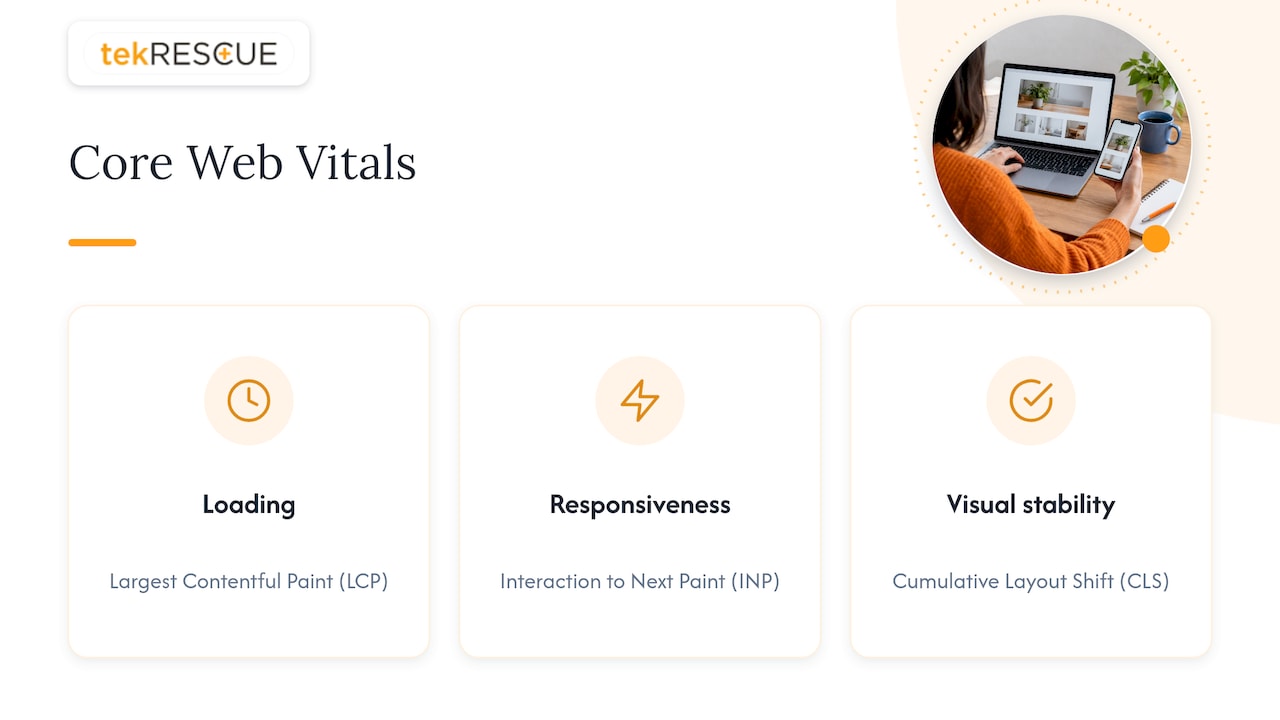
Google describes Core Web Vitals as three measures of page experience: Largest Contentful Paint (LCP), Interaction to Next Paint (INP) and Cumulative Layout Shift (CLS). They cover loading, responsiveness and visual stability. Google also says its ranking systems seek to reward good page experience, so treat them as a floor to clear, not a magic lever. A fast page with nothing useful on it will not win.
Measure real pages, not just your homepage. Use the Core Web Vitals report in Search Console for field data, and test your slowest templates: a service page, a blog post, a contact page.
What usually slows WordPress down
Semrush’s guide lists the standard performance tools: caching plugins, image compression, lazy loading and a CDN. In our experience, the causes tend to cluster:
- Hosting. Cheap shared hosting can cap how fast any optimization can go. Server response time is a hosting problem, not a plugin problem.
- Images. Oversized photos are the most common LCP offender. See our walkthrough on how to optimize images and keep your site fast.
- Plugins and page builders. Each one can add scripts and styles to every page. Remove what you do not use.
- Layout shift. Ads, embeds, late-loading fonts and images without set dimensions make the page jump while it loads.
- Third-party scripts. Chat widgets, trackers and pop-ups often hurt interaction speed.
Change one thing at a time and retest. Stacking five optimization plugins at once is how sites end up with broken checkout forms and no idea which plugin did it.
Mobile
A responsive theme is the start, not the finish. Test tap targets, menus, forms and pop-ups on an actual phone. A pop-up that covers the screen on mobile, or a phone number that is not tappable, costs you leads even if your rankings hold.
Step 7: Metadata, canonicals and structured data
Give every indexable page a unique title and meta description, one H1, and a canonical tag. Your SEO plugin handles most of that, but templates need review. Common failures include:
- Every page title ending in the same long site name, so the useful part gets cut off
- Duplicate titles across location or service pages
- Canonicals on paginated or filtered pages pointing somewhere unexpected
- Schema for reviews or products that do not appear on the page
For a local business, accurate organization or local business schema, with name, address and phone number matching your site and business profile, is the most useful starting point. Validate it with Google’s Rich Results Test before you move on.
Step 8: Security is part of technical SEO
A compromised site can be flagged, injected with spam pages, or taken offline. All three damage search visibility. WordPress ships security releases regularly. For example, version 6.5.8 included fixes for stored cross-site scripting vulnerabilities, and WordPress recommended updating sites immediately.
The habits that keep you safe are not complicated:
- Turn on automatic updates for core where your host and setup allow it, and review plugin and theme updates weekly.
- Delete plugins and themes you do not use.
- Use unique admin passwords and two-factor authentication.
- Keep tested, off-site backups.
- Watch for new pages, redirects or admin users you did not create.
Our WordPress security basics guide covers the first steps, and the 30 and 90 day hardening plan gives a prioritized order for admins who already have a live site. If you want to know what to watch and who acts when something goes wrong, see website security monitoring.
Perspective: why we treat WordPress SEO as an infrastructure job
Most small business owners think of SEO as writing and links. In our work, the stalled sites are rarely stalled because of words. They are stalled because of something underneath: a leftover noindex, a plugin conflict, a slow server, a site that was patched late and then flagged.
That is why we do not separate SEO from web development and IT. A website is infrastructure. The same team that builds and hosts it should understand how it is crawled, how it is secured and how it is maintained. When those jobs sit with three different vendors, nobody owns the failure.
Our approach is to fix the foundation first: visibility, URLs, sitemaps, speed, security. Then build content and links on top of something stable. It is less glamorous than a campaign. It is also how you stop paying for traffic that never had a chance to arrive.
If you run a business, here is the uncomfortable truth: nobody is watching your site’s technical health unless you have made it someone’s job.
Randy Bryan
A technical SEO routine you can actually keep
One-time setup is not enough. Plugins update, editors upload huge images, and someone changes a setting. A simple cadence works for most small sites:
| When | Check |
|---|---|
| Weekly | Updates applied, backups completed, uptime |
| Monthly | Search Console indexing and Core Web Vitals reports, new 404s |
| Quarterly | Full crawl for broken links, redirect chains, duplicate titles, missing canonicals |
| Before any redesign or move | Redirect map, noindex check, sitemap review |
| After any major plugin or theme change | Recheck speed, forms and key page indexing |
If you hold sensitive data, such as patient information or client financial records, add security reviews to that cadence. Our website security audit quick wins are a good place to start, and a website maintenance plan makes the routine someone’s recurring responsibility.
Where hosting or developer help is worth it
You can handle the settings above yourself. Some tasks go deeper:
- Server response time, PHP configuration and caching at the server level
- Fixing a theme that outputs broken heading structure or blocks crawlable links
- Redirect mapping for a large URL change
- Cleaning up a hacked site and finding how it was breached
- Structured data beyond what your plugin offers
These are the points where a plugin cannot save you and a mistake is costly. That is where our team comes in. We build and maintain WordPress sites, run SEO alongside them, and handle web development, maintenance and hosting under one roof, with cybersecurity support for businesses that need it. If you serve Austin, San Marcos, New Braunfels, Kyle or the surrounding area, talk to us about a technical review of your site.
Common mistakes to avoid
- Leaving “discourage search engines” on after launch
- Running two SEO plugins at once
- Changing permalinks on an established site without redirects
- Putting noindexed or redirected URLs in the sitemap
- Blocking CSS or JavaScript in robots rules
- Chasing a perfect speed score on the homepage while service pages stay slow
- Ignoring updates because the site “works fine”
- Making large changes with no baseline, so you cannot tell what helped or hurt
FAQ
Which SEO plugin is best for WordPress?
The best one is the one you configure properly, and you should run only one. Look for a plugin that covers titles, descriptions, sitemaps, schema and canonical tags, then check the output in your page source. Feature lists matter less than getting those basics correct.
What is the difference between SEO and technical SEO?
SEO is the whole discipline: content, links and technical health. Technical SEO is the part that makes sure search engines can crawl, render and index your pages. It is the foundation, and content and links work on top of it.
Is WordPress still good for SEO?
Yes. WordPress has search-friendly features such as permalinks and a built-in XML sitemap, and it is widely used for business sites. The risk comes from themes, plugins, hosting and neglected updates, not from the platform itself.
How often should I audit technical SEO on my WordPress site?
Check Search Console monthly and run a full crawl quarterly. Also audit before and after any redesign, migration or major plugin change, since those are when indexing and redirect problems usually appear.
Sources
- What Is Technical SEO? The Definitive Guide, Search Engine Land
- Search Engine Optimization, WordPress documentation
- Top 9 WordPress technical SEO issues to address, Search Engine Land
- WordPress SEO Tutorial, Yoast
- Ultimate WordPress SEO Guide, WPBeginner
- The Ultimate Guide to WordPress SEO, Semrush
- Build and Submit a Sitemap, Google Search Central
- WordPress Version 5.5
- Understanding Core Web Vitals and Google search results, Google Search Central
- WordPress Version 6.5.8
Recommended
Table of Contents